IBM i Access Client Solutions (ACS) – Restricting Features
IBM i Access Client Solutions is a very powerful tool — and that’s exactly the problem. When you roll out IBM i Access Client Solutions (ACS) to your organization, handing every user the default, wide-open application is a massive security risk. Right out of the box, ACS hands your users Data Transfer, Remote Command, IFS browsing, Printer Output, Operations Console, and more.
In our previous post, “Mastering IBM i ACS Deployment – 01: IBM i ACS Deployment Methods,” we discussed the various IBM ACS deployment methods and how you can leverage Deployment Wizard (/AdminConfig) to customize IBM ACS functions and deploy them in either a local or remote location.
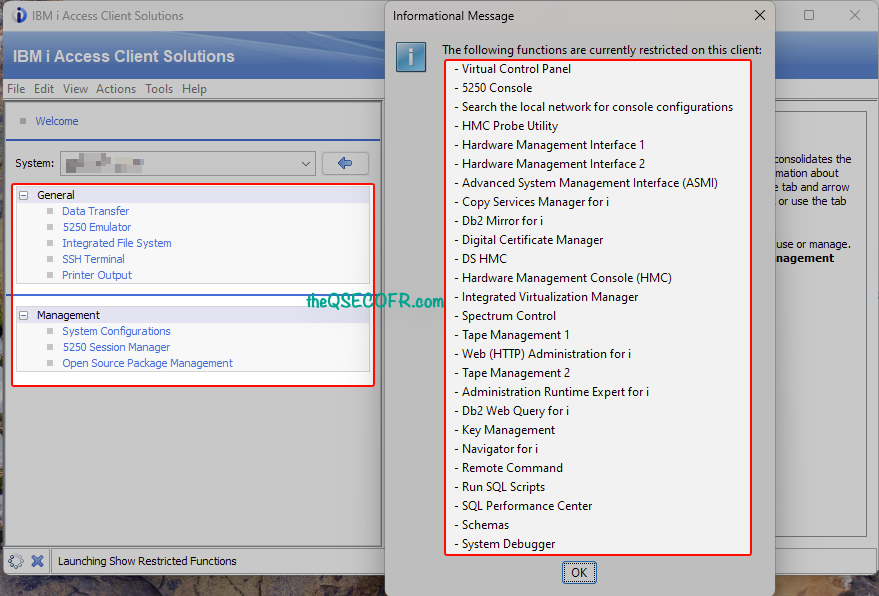
While AcsConfig.properties can be edited through the /AdminConfig wizard, which is designed to simplify the process, administrators can also manually edit the AcsConfig.properties file to customize the features as per their requirements.
In this post, we will discuss the manual configuration options available to administrators in the AcsConfig.properties file to control and restrict IBM ACS. Basically all about enforcing Security and Restrictions on IBM ACS.
If you haven’t read the IBM i Access Client Solutions overview or Mastering IBM i ACS Deployment – 01: IBM i ACS Deployment Methods, yet, start there first — then come back here to harden what you’ve deployed.
Table of Contents
What Is acsconfig.properties and Why Should Every IBM i Admin Care?
acsconfig.properties is a plain-text configuration file that ships with every ACS installation. It controls how ACS behaves — which features are visible, what connections default to, and how the client handles security. Every line is a key-value property. Change the file, and ACS picks up the change on the next launch.
That simplicity is both its power and its risk. Any user who can find and edit the file can undo your restrictions. We’ll cover how to prevent that — but first, let’s understand the mechanics.
By default, ACS allows users to:
- Access all tools
- Create their own connections
- Modify settings locally
That flexibility is great for individuals—but not for controlled enterprise environments.
With configuration files, you can:
- Lock down sensitive features
- Standardize user experience
- Enforce security best practices
- Reduce misconfigurations
Before modifying any configuration files, you need to understand the best way to deploy ACS. Stop installing it locally on every PC.
According to IBM’s official ACS property documentation, you set or modify ACS properties in two primary ways: via the command line at launch, or by editing acsconfig.properties directly. The file approach is what scales across enterprise deployments.
Instead, place the extracted ACS directory on a read-only network share. Point your users’ desktop shortcuts to the acslaunch executable on that share. When you update the core files or the AcsConfig.properties file on the network, every user immediately inherits the changes upon their next launch. Furthermore, because the users only have read access to the directory, they cannot bypass your enforced security policies.
Where to Find the File
ACS stores acsconfig.properties in the same directory as acsbundle.jar — the main executable JAR file. The exact path depends on how you deployed ACS.
To find it on an existing installation:
- Launch ACS and go to Help → About
- Read the path shown in the first paragraph — that’s where
acsbundle.jarlives acsconfig.propertiessits in the same folder
On Windows, a typical path looks like:
C:\Users\<username>\IBM\ClientSolutions\AcsConfig.properties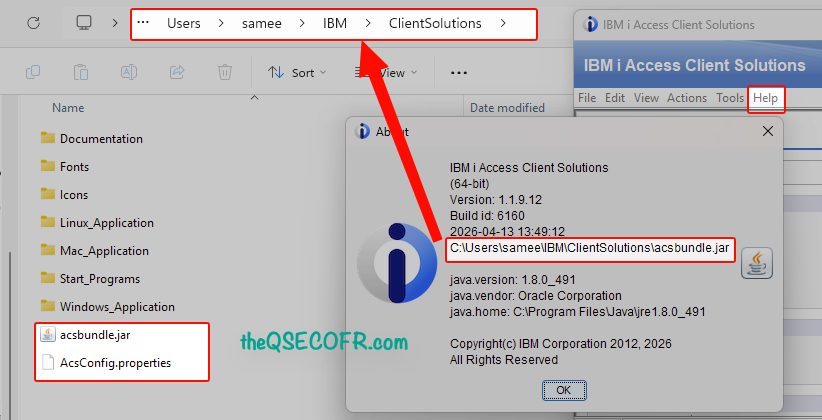
On a shared remote deployment hosted on the IFS:
/QIBM/ProdData/Access/ACS/Base/AcsConfig.properties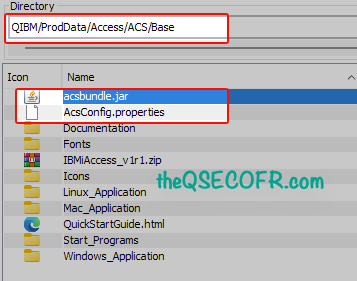
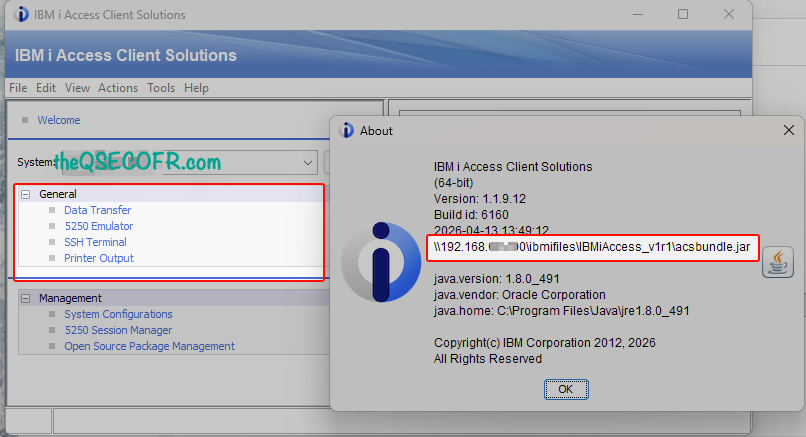
On Mac, a typical path looks like:
/usr/local/ibmiaccess/AcsConfig.properties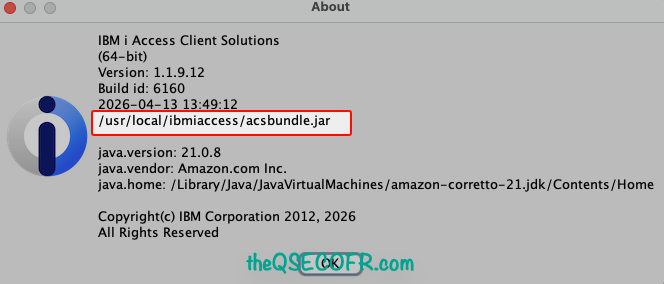
On linux, probably in /usr/share/applications/ or in /opt/ibm/iAccessClientSolutions/
How ACS Reads and Prioritizes the File
- ACS always looks for an external
acsconfig.propertiesfile first. - There’s also a copy embedded inside
acsbundle.jar, but ACS ignores the internal one as long as an external file exists. - Remove the external file, and ACS falls back to the internal defaults — which means no restrictions, no SSL enforcement, no customization.
You can also point ACS to a completely different config file at launch using the -Dcom.ibm.iaccess.AcsConfig command-line parameter. This lets you push different configurations to different user groups from the same acsbundle.jar. IBM’s Getting Started documentation covers this override mechanism in detail.
Example:
| For user A: | java -Dcom.ibm.iaccess.AcsConfig=H:\IBM_ACS\UserAConfigFile -jar H:\IBM_ACS\acsbundle.jar |
| For User B | java -Dcom.ibm.iaccess.AcsConfig=H:\IBM_ACS\UserBConfigFile -jar H:\IBM_ACS\acsbundle.jar |
Note the following restrictions:
- The property com.ibm.iaccess.AcsConfig will only take affect when specified on the command-line. It will not take affect when specified within AcsConfig.properties.
- If the file specified by com.ibm.iaccess.AcsConfig does not exist or cannot be read, the locations for AcsConfig.properties previously mentioned will be used.
Two Ways to Protect the File From User Tampering
If users can edit acsconfig.properties, they can remove your restrictions. Two options stop that:
Option 1 — Set file permissions:
- Windows: Mark the file read-only, hidden, or use
icaclsto restrict write access
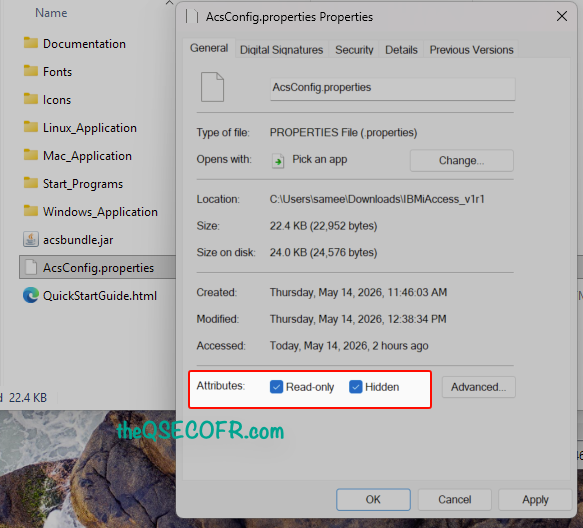
- Linux/Mac: Set permissions to
444(chmod 444 AcsConfig.properties)
Option 2 — Embed the file inside acsbundle.jar: Use a tool like 7-Zip to open acsbundle.jar and replace the internal copy with your hardened version. Then delete the external file. Users no longer see a plain-text file to tamper with.
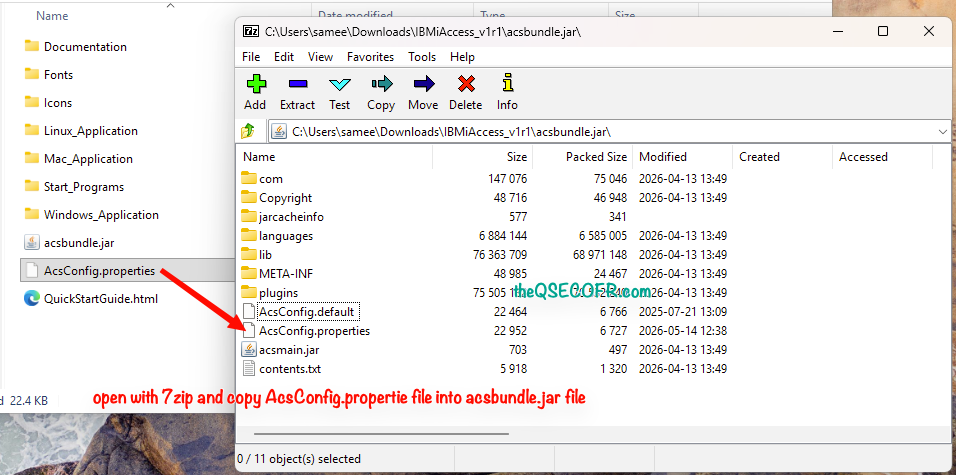
or alternatively you can do it with jar command as well.
jar uvf acsbundle.jar AcsConfig.properties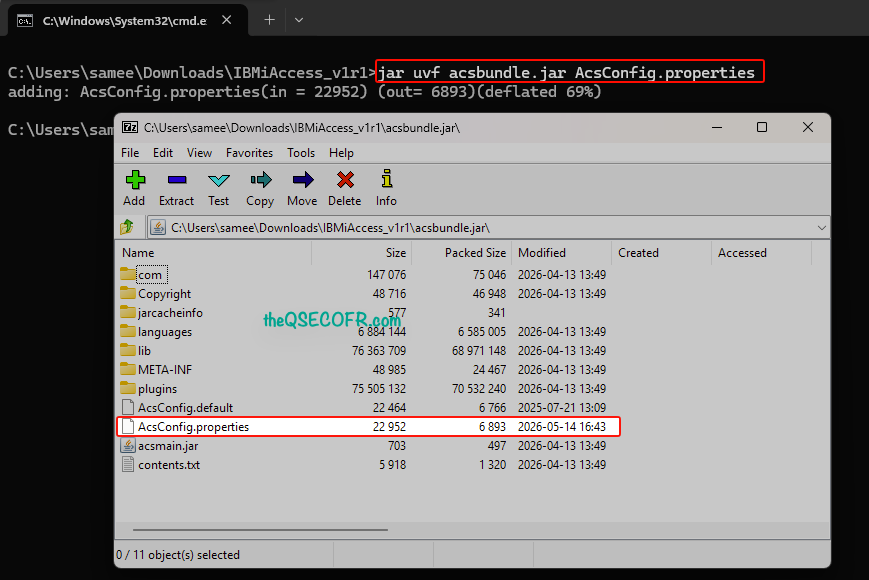
The catch with Option 2: every ACS update overwrites acsbundle.jar, so you must re-embed your config after each update. Build that into your patch process. The embedded approach is more secure but demands discipline around updates.
Enforcing Feature Restrictions — Locking Down What Users Can See and Do
This is where most IBM i admins spend their time. ACS ships with every feature enabled. Your job is to decide what survives.
IBM Support’s function restriction guide outlines four distinct restriction methods: acsconfig.properties properties, Windows Registry entries, Navigator for i Function IDs, and WRKFCNUSG commands. This section focuses on the file-based approach — the most portable and OS-agnostic option.
ExcludeComps — The Block List Approach
The com.ibm.iaccess.ExcludeComps property tells ACS which components to hide and disable. You supply a comma-separated list of component keywords.
The full list of components you can exclude, per IBM’s Getting Started documentation:
| Keyword | What It Controls |
|---|---|
DATAXFER | Data Transfer to/from IBM i |
EMULATOR | 5250 Display/Print emulation and Session Manager |
KEYMAN | SSL certificate management |
OPCONSOLE | Operations Console and Virtual Control Panel |
RMTCMD | Remote Command (command-line access) |
SPLF | Printer Output |
| IFS | Integrated File System |
HWCONSOLE | Hardware management interface |
L1CPLUGIN | Navigator for i |
| DATABASE | Database functions (Schemas, Run SQL Scripts, SQL Performance Center) |
| DEBUGGER | IBM i System Debugger |
| SSH | Secure Shell |
Examples:
- To exclude Operations Console and Hardware Console (common in environments where operators shouldn’t touch hardware-level functions):
com.ibm.iaccess.ExcludeComps=OPCONSOLE,HWCONSOLE
- Exclude multiple functions
com.ibm.iaccess.ExcludeComps=KEYMAN,OPCONSOLE,HWCONSOLE,L1CPLUGINcom.ibm.iaccess.IncludeComps=5250,DOWNLOADcom.ibm.iaccess.ExcludeComps=ifs,l1cplugin,keyman,database,opconsole,hwconsole,rmtcmd,debugger
- Restrict IFS Navigation:
- Setting the property
com.ibm.iaccess.ifs.RootDirectorywill override the default top level directory. Normally the top level directory is represented by a /. The specified path will be the top level directory the user will be allowed to navigate. Sub-directories of the specified path will also be allowed. Setting this property will override the Initial Directory settings on the IFS preferences panel. com.ibm.iaccess.ifs.RootDirectory=/home/sameera
- Setting the property
Restricting a component removes it from the GUI and blocks it from the command line. Users don’t see a grayed-out button — the feature simply disappears.
The problem with ExcludeComps: IBM occasionally ships new ACS features. With the block list approach, new features arrive enabled by default. You have to discover them, evaluate them, and add them to your exclusion list. In a tightly regulated environment, that’s a governance gap.
IncludeComps — The Allow List Approach (the Smarter Option)
This gives system administrators the ability to enable specific functions for their users and disable all the others. Setting this property will enable the specified functions and will remove all the others from the ACS main GUI.
Basically com.ibm.iaccess.IncludeComps flips the logic. Instead of listing what to block, you list what to allow. Everything else disappears automatically.
com.ibm.iaccess.IncludeComps=EMULATOR,SPLF- This configuration gives users only 5250 emulation and Printer Output.
- Data Transfer, Remote Command, Navigator, Operations Console — all gone.
- And when IBM ships a new feature next quarter, it stays hidden until you explicitly add it to your allow list.
Critical note: You cannot combine ExcludeComps and IncludeComps. Pick one approach and stick with it. Mixing the two directives may produces undefined behavior.
For BFSI environments with SOX, PCI-DSS, or HIPAA obligations, IncludeComps is the right choice. Default-deny always beats default-allow.
Step-by-Step: Restricting ACS for a Typical Deployment
Here’s a hardened starting configuration for a ibm i environment where users need 5250 sessions and nothing else:
- Step 1 — Open
AcsConfig.propertiesin a text editor (Notepad++ works well on Windows). - Step 2 — Find the
ExcludeCompsorIncludeCompssection. It’s commented out by default with a#prefix. - Step 3 — Add your restriction. For an allow-list approach:
- Only allow 5250 emulation – all other components disabled
com.ibm.iaccess.IncludeComps=EMULATOR
- For environments that also need Printer Output:
com.ibm.iaccess.IncludeComps=EMULATOR,SPLF
- Only allow 5250 emulation – all other components disabled
- Step 4 — Save the file.
- Step 5 — Launch ACS. The restricted components no longer appear in the menu.
- Step 6 — Protect the file using one of the two tamper-prevention methods described earlier.
Using Windows Registry for Tamper-Proof Restrictions
For Windows-managed environments, the Windows Registry approach gives you an additional layer of enforcement that’s harder for end users to bypass than a file permission.
Open ACS as a Windows Administrator. Go to Edit → Preferences → Restrictions tab. (This tab only appears when running as admin.)
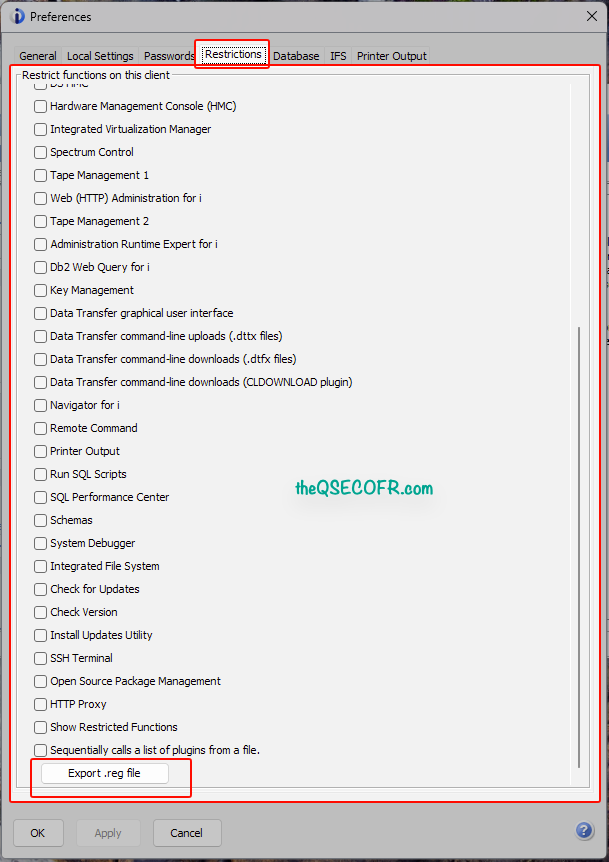
Configure your restrictions through the GUI, then export the resulting .reg file. Distribute that file via Group Policy or login scripts to apply the same restrictions across all workstations.
The Windows .reg file can alternatively be generated using the following parameter in command line:
/PLUGIN=restrict /<options>/exportreg=<file> Export a Windows registry file (.reg file).
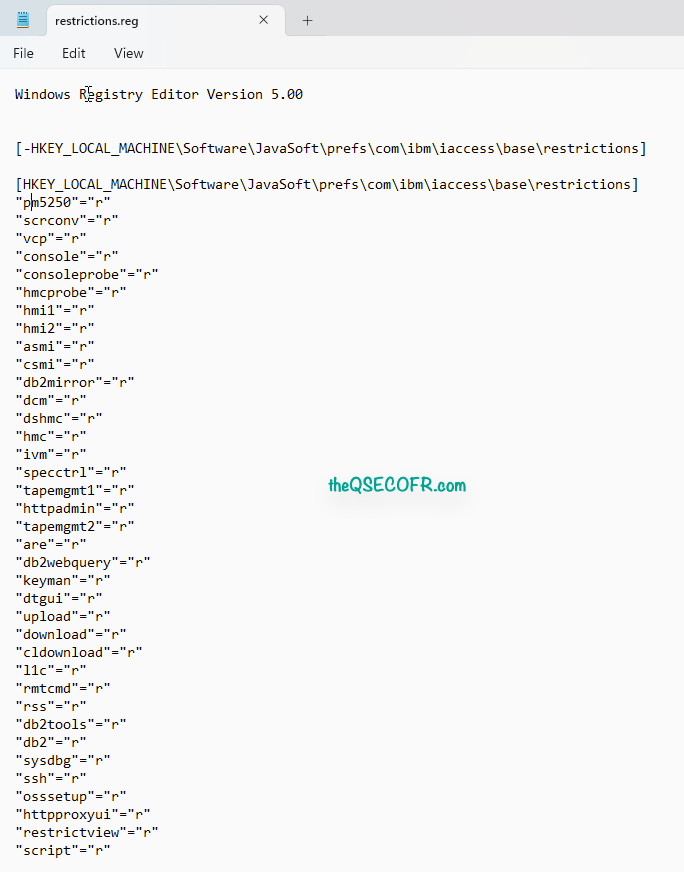
The .reg file can be manually edited to unrestrict (“u”) or restrict (“r”) each function. A .reg file should be created for each combination of enabled functions, distributed to the desktop, and executed after ACS is installed on the desktop.
This is the suggested method for Windows Administrators that want to eliminate the possibility of the end users being able to add Access Client Solutions features back in via the AcsConfig.Properties file. Registry-based restrictions work alongside — not instead of — acsconfig.properties. Use both for defense in depth.
This Restriction feature is included in Linux/Mac app as well. You need to run IBM ACS as root/sudo to make available the features.
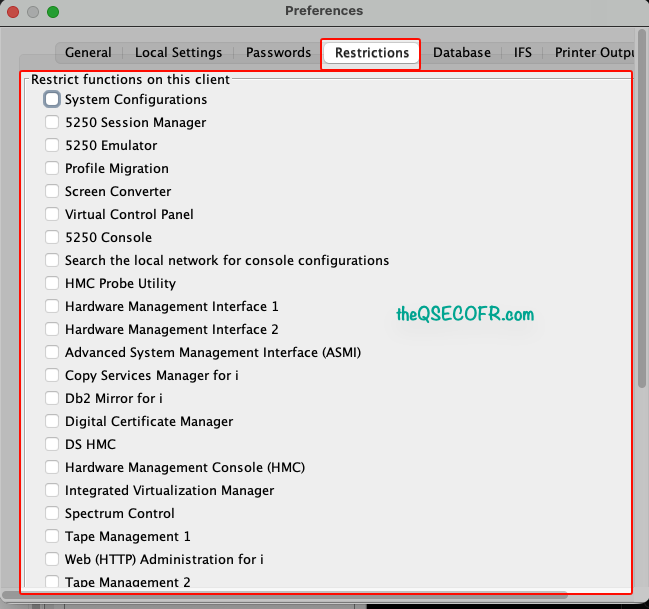
Locking Down System Configurations Across a Multi-User Deployment
For shared remote deployments — where acsbundle.jar lives on a network share or IFS directory and all users launch from that central location — configuration changes propagate automatically when users restart ACS. No re-running the installer. No touching individual workstations.
This is the architectural advantage of remote deployments. The tradeoff: users need network connectivity to the central location to launch ACS at all.
For local deployments (files copied to each PC), you push updated configurations by re-running the install script. It overwrites local files while preserving your custom AcsConfig.properties — as long as you’ve backed it up before the update.
Step-by-Step: Staging a Consistent Connection Profile
- Step 1 — Set up your ACS deployment on a central network share or IFS path accessible to all users.
- Step 2 — Run the admin config wizard:
\\server\share\Windows_Application\install_acs_win-64.js /AdminConfig
- Step 3 — Work through the wizard. When prompted for system names and connection settings, enter your production IBM i hostname or IP address.
- Step 4 — The wizard updates
AcsConfig.propertiesin the deployment package. All users who launch from this location pick up the pre-configured connection on first launch. - Step 5 — For ongoing updates, always save your custom
AcsConfig.propertiesbefore extracting a newer ACS version over the deployment folder. IBM’s update process overwrites the file with defaults.
Keep a backup copy of your hardened AcsConfig.properties in version control or a dedicated admin share. Losing it during an update means rebuilding your restrictions from scratch.
Enforcing Security Policies Through acsconfig.properties
Feature restrictions control what users can do. Security policies control how they do it — specifically, whether they do it over an encrypted channel.
Industry compliance standards for IBM i environments consistently require TLS 1.2 or higher for all communications. ACS supports this — but doesn’t enforce it by default. That’s your job.
Forcing All Connections to Use TLS/SSL
The com.ibm.iaccess.DefaultCommunicationToSSL property forces SSL/TLS on all new system configurations. Set it to true, and every new System Configuration ACS creates automatically has “Use SSL for connection” checked.
com.ibm.iaccess.DefaultCommunicationToSSL=truePer IBM’s TLS configuration guide for ACS, this property applies to all connection types: 5250, Data Transfer, IFS tool, and Printer Output. It doesn’t retroactively update existing saved sessions — only newly created ones.
Important prerequisite: The IBM i host servers and Telnet server must already have TLS/SSL configured in Digital Certificate Manager (DCM) before enabling this on the client side. Enforcing SSL in ACS while the server side still accepts plaintext connections creates a mismatch that breaks connectivity.
Centralizing the SSL Keystore With CertFile
In enterprise deployments, managing individual SSL keystores on hundreds of workstations is unworkable. The com.ibm.iaccess.CertFile property lets you point all ACS clients to a shared keystore file on a network path.
com.ibm.iaccess.CertFile=\\server\certs\ibmi_keystore.kdbEvery ACS client reads the same certificate store. When certificates renew, update the file in one location. Done.
Combining TLS Enforcement With Feature Restrictions
SSL enforcement and feature restrictions work independently in AcsConfig.properties — but they belong together in the same file. A hardened config file handles both:
# Feature restrictions - allow list approach
com.ibm.iaccess.IncludeComps=EMULATOR,SPLF

# Security policy - force SSL on all connections
com.ibm.iaccess.DefaultCommunicationToSSL=true

# Shared certificate store
com.ibm.iaccess.CertFile=\\server\certs\ibmi_keystore.kdb
This is your security baseline. Everything else is layered on top.
Step-by-Step: Building a Hardened acsconfig.properties From Scratch
This gives you a production-ready starting point for a BFSI IBM i environment.
- Step 1 — Locate your
AcsConfig.propertiesfile (Help → About in ACS). - Step 2 — Open the file in a text editor. The default file ships with everything commented out using
#. - Step 3 — Add your hardened configuration block.
# ============================================================
# theQSECOFR.com - Hardened ACS Configuration
# Updated: [DATE] | Environment: PRODUCTION
# ============================================================

# FEATURE RESTRICTIONS
# Allow-list: only 5250 emulation and Printer Output
com.ibm.iaccess.IncludeComps=EMULATOR,SPLF

# SECURITY POLICIES
# Force TLS/SSL on all new system configurations
com.ibm.iaccess.DefaultCommunicationToSSL=true

# Point all clients to the shared certificate keystore
com.ibm.iaccess.CertFile=\\fileserver\ibmi-certs\keystore.kdb- Step 4 — Adjust
IncludeCompsto match your environment’s requirements. If your users need Data Transfer, addDATAXFER. If they need Navigator, addL1CPLUGIN. Be deliberate — every component you add expands the attack surface. - Step 5 — Save the file.
- Step 6 — Test by launching ACS as a standard (non-admin) user. Verify that only the approved components appear, and that new System Configurations default to SSL.
- Step 7 — Apply tamper protection: set the file to read-only, or embed it inside
acsbundle.jar. - Step 8 — Document the configuration, the date, and the change reason. Your auditors will ask.
Example restricted configuration
Deploying and Maintaining a Hardened ACS Configuration at Scale
Getting the config right on one machine is the easy part. Keeping it consistent across 50, 100, or 500 workstations is where most environments fall apart.
Local vs. Shared Remote Deployment — Which Fits Your Environment?
- Local deployment copies ACS files to each user’s PC. Updates require re-running the install script on each machine (or via software distribution tools like SCCM or Jamf). Configuration changes don’t propagate automatically.
- Shared remote deployment keeps ACS files on a central share. Users launch from the network location. Configuration updates take effect immediately on the next ACS restart — no touching individual workstations.
For enterprise environments managing IBM i access across dozens of workstations, shared remote deployment is almost always the right choice.
Protecting Your Config During ACS Updates
IBM releases ACS updates regularly. Each update extracts a new acsbundle.jar — and a fresh default AcsConfig.properties — over your deployment folder.
Your hardened config disappears unless you protect it. The process:
- Before applying an update, copy
AcsConfig.propertiesto a safe backup location - Extract the new ACS version over the existing deployment folder
- Restore your backed-up
AcsConfig.propertiesover the fresh default
Build this into your IBM i PTF and software update workflow. Treat AcsConfig.properties the same way you treat a custom CL program — it’s configuration you own and must protect.
Using Function Usage IDs (WRKFCNUSG) for Server-Side Control
AcsConfig.properties controls the client. But client-side controls have a fundamental limitation: they only apply when ACS launches from your controlled deployment. A user who downloads ACS independently and runs acsbundle.jar directly bypasses your file entirely.
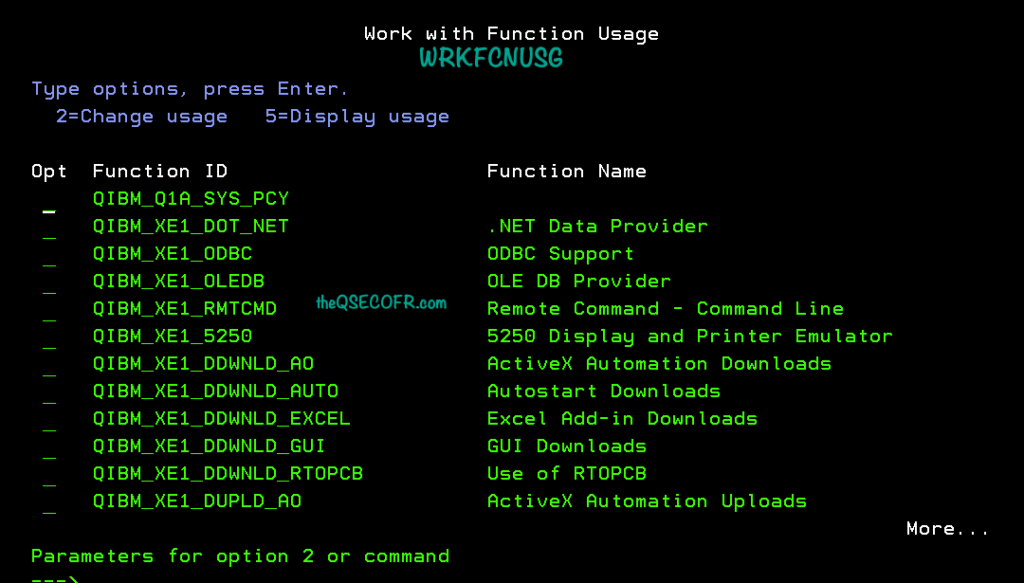
Server-side Function Usage IDs close that gap. IBM i tracks ACS feature access through Function IDs with the naming scheme QIBM_XE1_xxxxxxxx. You manage these through Navigator for i (Security → Function Usage)
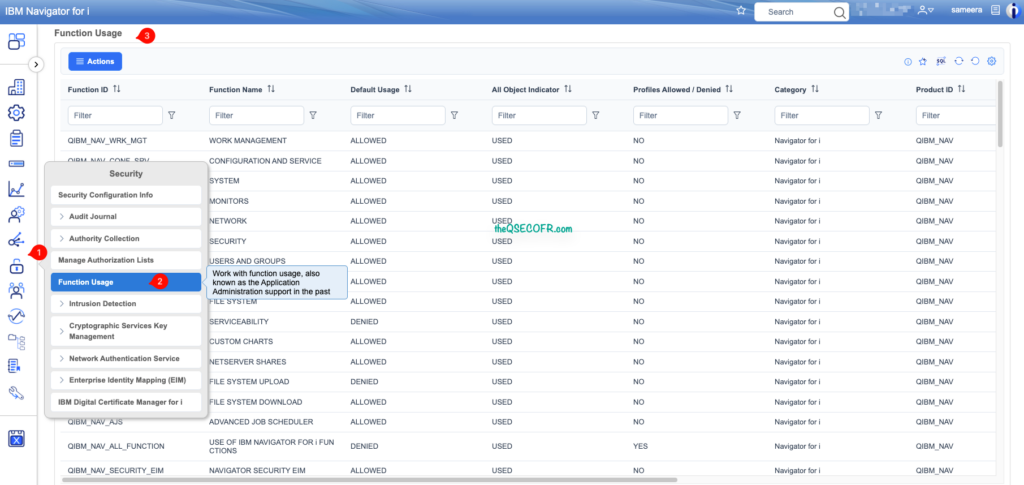
or with the WRKFCNUSG command.
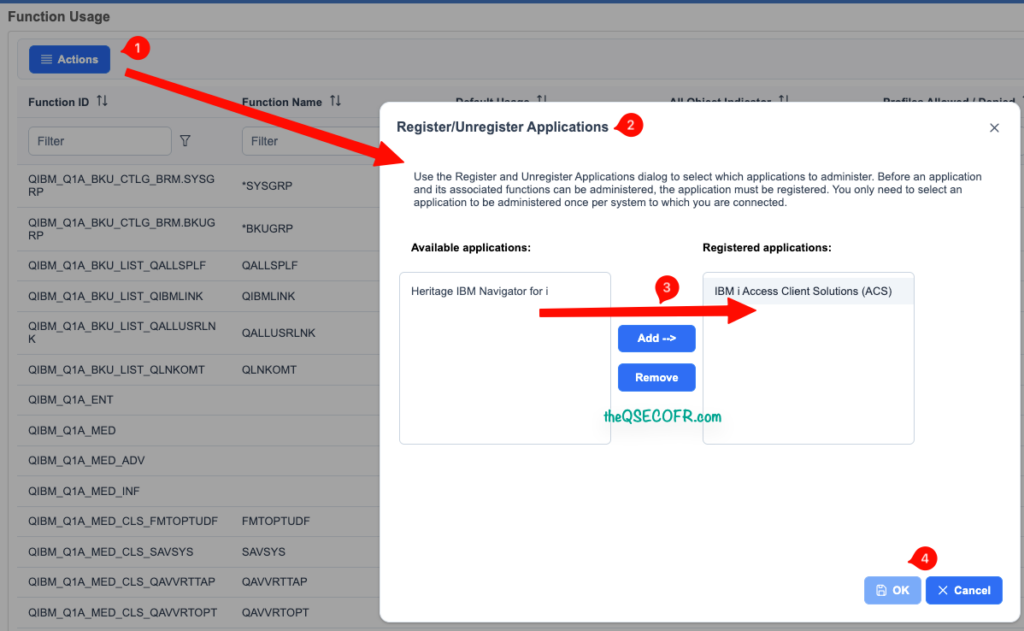
Note: The Function Usage ID’s for Access Client Solutions first need to be Registered. From the Function Usage feature, select the Actions button at the top and select Register/Unregister Applications. Confirm IBM i Access Client Solutions (ACS) has been added to the Registered applications side. Once registered the IBM i Access Client Solutions related Function ID’s will be listed as available to be managed with naming scheme of QIBM_XE1_xxxxxxxx.
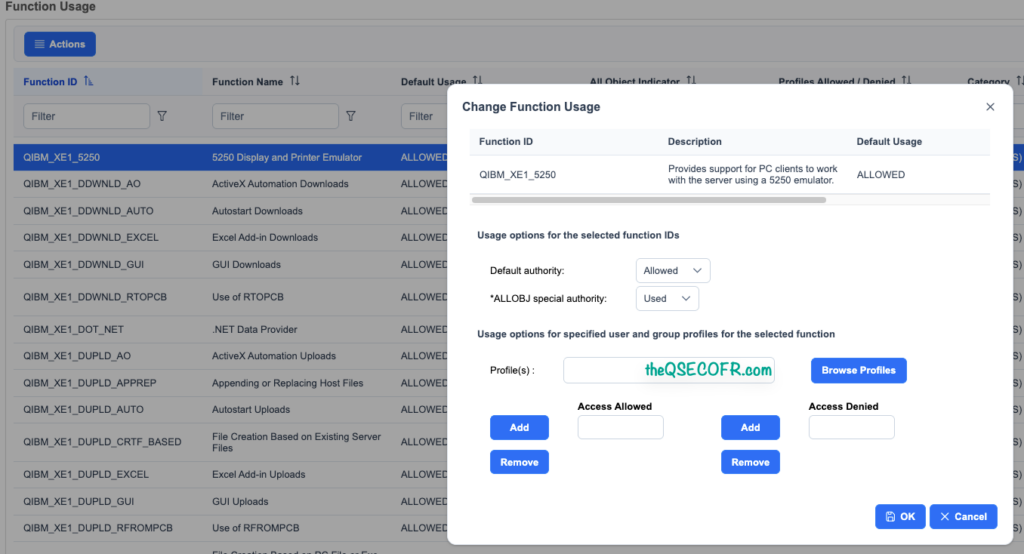
Change Function Usage
For database functions specifically — including Run SQL Scripts — the following Function IDs apply:
QIBM_XD1_OPNAV_DBLIBS      - Schema/Library browsing
QIBM_XE1_OPNAV_DBSQLPM     - SQL Performance Monitor
QIBM_XE1_OPNAV_DBSQLPCS    - SQL Plan Cache
QIBM_XE1_OPNAV_DBXACT      - Database Transactions
Disabling these on the IBM i side blocks the corresponding ACS features regardless of how the client is deployed. Combine server-side Function IDs with acsconfig.properties restrictions for a defense-in-depth posture.
Going Beyond the File — Complementary Controls for a Stronger Security Posture
acsconfig.properties handles the client. Your IBM i handles the server. Both need attention.
IBM i Exit Points as the Last Line of Defense
Even with ACS locked down, network protocols like FTP, ODBC, and DDM/DRDA still expose IBM i data to any client that speaks those protocols. That’s where IBM i exit points and exit programs become essential.
Exit programs plug into IBM i’s network server hooks and enforce custom security logic — IP whitelisting, time-based restrictions, user profile validation, real-time logging. They operate at the OS level, meaning no client-side bypass exists. A user who connects via a rogue ODBC driver still hits your exit program before touching data.
Exit points and acsconfig.properties solve different problems. acsconfig.properties controls what the ACS user interface exposes. Exit programs control what the IBM i network servers actually execute. You need both.
Connecting acsconfig.properties to Your Audit and Compliance Program
A solid IBM i audit and compliance framework covers user access controls, authentication mechanisms, network security, and activity logging. Your ACS configuration fits directly into the “user access and authentication” pillar.
When auditors ask how you control what tools users access on IBM i, your answer should include:
- The
IncludeCompsdirective limiting ACS to approved functions only - The
DefaultCommunicationToSSL=truepolicy enforcing encrypted transport - The file protection mechanism (read-only or JAR-embedded) preventing unauthorized changes
- The documented change process for configuration updates
- Server-side Function Usage ID controls as a backstop against client bypass
Document your AcsConfig.properties in your security policy documentation. Include the file hash, the change date, and the approver. Treat it as a controlled configuration artifact — because in a regulated environment, that’s exactly what it is.
For deeper context on IBM i encryption strategies, the theQSECOFR.com encryption research goes further into what’s possible beyond transport-layer controls.
Conclusion
Securing IBM i Access Client Solutions is not just about limiting user access — it’s about creating a controlled, consistent, and compliant client environment across your organization. Through the use of acsconfig.properties, centralized deployment strategies, Windows Registry enforcement, TLS/SSL configuration, and server-side controls like WRKFCNUSG and IBM i exit points, administrators can significantly reduce risk while simplifying ACS management at scale.
By combining feature restrictions, hardened connection policies, and centralized configuration management, organizations can ensure that ACS aligns with their security standards without sacrificing usability. Ultimately, a well-planned ACS hardening strategy strengthens both operational control and the overall security posture of the IBM i environment.
Start with the hardened template in this guide, adapt it to your environment, and get it into version control today.
- IBM i Access – ACS Getting Started: https://www.ibm.com/support/pages/ibm-i-access-acs-getting-started
- Restrict Functions in Access Client Solutions (ACS): https://www.ibm.com/support/pages/restrict-functions-access-client-solutions-acs
- IBM i Access – ACS Quick Start Guide: https://www.ibm.com/support/pages/ibm-i-access-acs-quick-start-guide
- IBM i Access Client Solutions: Customization and deployment made easy: https://developer.ibm.com/articles/i-ibmi-access-client-solutions-customization-trs/
- Setting IBM i Access Client Solutions (ACS) Properties: https://www.ibm.com/support/pages/setting-ibm-i-access-client-solutions-acs-properties
- IBM i Access Client Solutions: Customization and deployment questions answered
https://developer.ibm.com/articles/i-ibmi-access-client-solutions-2/