If you spend a significant amount of time in the terminal, you know how frustrating it can be to locate files, commands, directories, or even Git branches quickly. I used to rely heavily on find, grep, command history, and manual navigation. It worked—but it was slow and inefficient.
Everything changed when I discovered fzf.
Today, fzf is one of the most essential tools in my daily workflow on both macOS and Linux. It dramatically improves how fast I find things and interact with the terminal.
In this post, I’ll explain what fzf is, how to install and configure it, and most importantly, how I use it in real-world scenarios to boost productivity.
Table of Contents
What is fzf?
fzf is a general-purpose command-line fuzzy finder that allows you to search and filter lists interactively in the terminal.
Unlike traditional search tools that require exact matches, fzf uses fuzzy matching, meaning you only need to type part of the name—even out of order—and it will find the correct result.
For example, instead of typing: application_config_backup.txt You can simply type: acb and fzf will locate it instantly.
fzf works with anything:
- Files
- Directories
- Command history
- Processes
- Git branches
- Environment variables
- SSH hosts
- Or any list passed to it
It reads input, filters it interactively, and outputs your selection, making it extremely flexible.
Why fzf is a Productivity Superpower
Here’s why fzf is so powerful:
- Instant search across thousands of files
- Smart fuzzy matching (no exact typing needed)
- Interactive interface with preview support
- Works with any command or workflow
- Integrates with bash, zsh, git, vim, and more
fzf transforms slow terminal workflows into fast, interactive operations.
Installing fzf on macOS and Linux
macOS (Homebrew)
If you use Homebrew:
brew install fzfThen enable key bindings and completion:
$(brew --prefix)/opt/fzf/install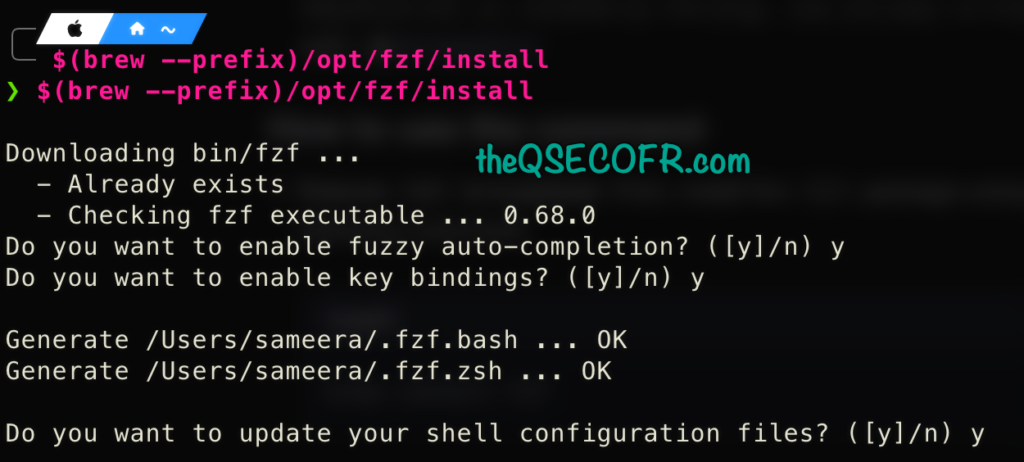
Ubuntu / Debian
sudo apt install fzfRHEL / CentOS / Fedora
sudo dnf install fzfArch Linux
sudo pacman -S fzffzf is available in most package managers because it’s lightweight and cross-platform.
Recommended Configuration
This step unlocks the real power of fzf.
Add this to your ~/.bashrc or ~/.zshrc:
export FZF_DEFAULT_OPTS="--height 40% --layout=reverse --border"Optional but highly recommended (faster search using fd):
export FZF_DEFAULT_COMMAND="fd --type f"This replaces slow find with faster search tools.
Reload:
source ~/.bashrcMy Real-World Use Cases
Here’s how I use fzf daily.
1. Finding and Opening Files Instantly
Before fzf:
find . -name "*config*"Now:
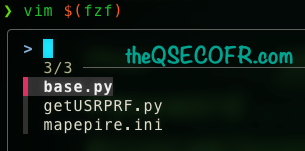
fzfor open directly:
vim $(fzf)This saves massive time when working with large projects.
2. Searching Command History
Press:
CTRL + RThen type part of any previous command. fzf instantly filters and lets you execute it. This eliminates retyping long commands.
Example:
docker run ...
kubectl apply ...
ssh root@192.168.10.22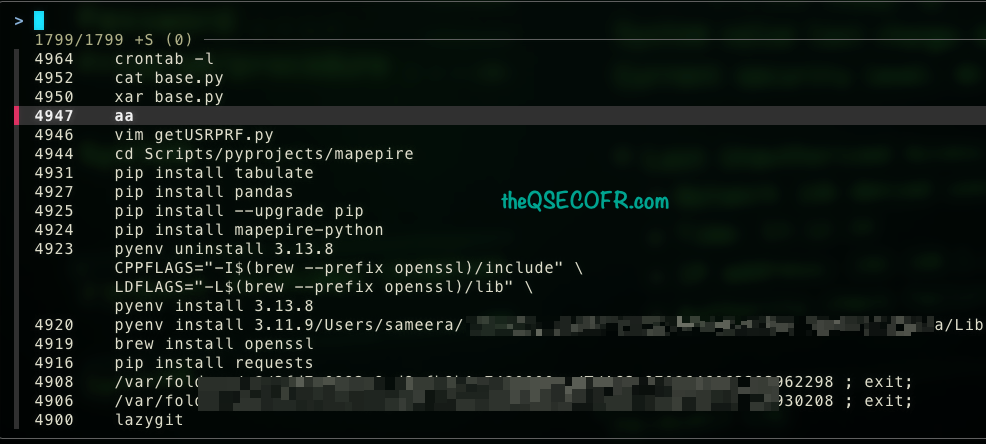
All instantly searchable.
3. Quickly Switching Directories
Press:
ALT + C / ⌥ + C
fzf shows all directories and lets you jump instantly.
This is far faster than:
cd project/folder/subfolder/example/
4. Opening Files with Autocomplete
Type:
vim **
Press TAB.
fzf opens an interactive file selector.
This works with:
vim **
nano **
code **
cat **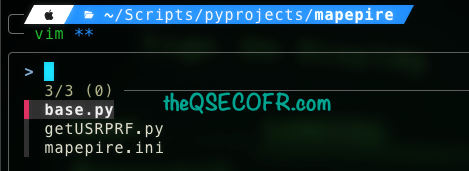
5. Searching Inside Git Repositories
Find branches:
git branch | fzfSwitch branch:
git checkout $(git branch | fzf)Find commits:
git log | fzf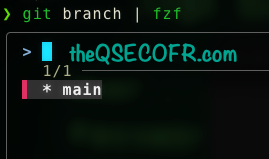
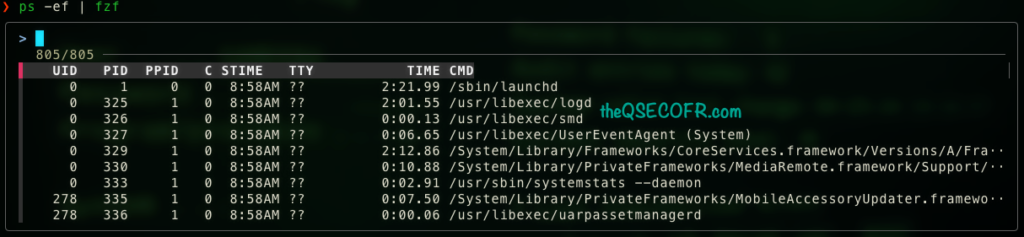
6. Killing Processes Easily
Instead of:
ps aux | grep python
kill -9 1234
Use:
ps -ef | fzfOr:
kill -9 $(ps -ef | fzf | awk '{print $2}')fzf makes process management simple.
7. Searching Environment Variables
env | fzf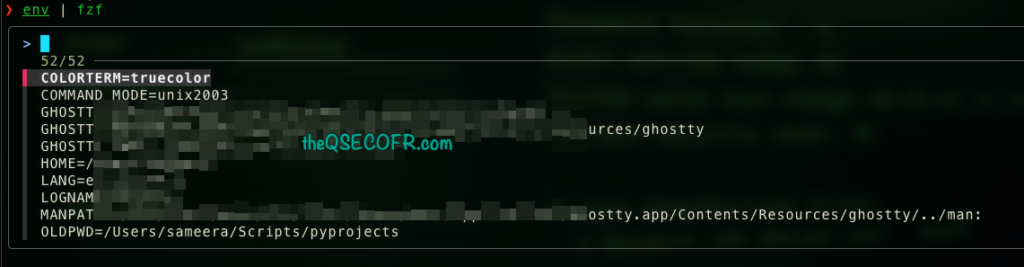
This is extremely useful for debugging.
8. SSH to Servers Faster
Instead of typing full hostname:
ssh **Press TAB and select.
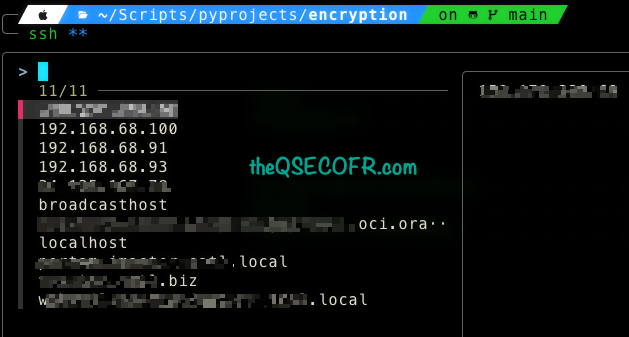
Perfect when managing many servers.
9. Searching File Content with ripgrep + fzf
Example:
rg --line-number . | fzfSelect file → open instantly.
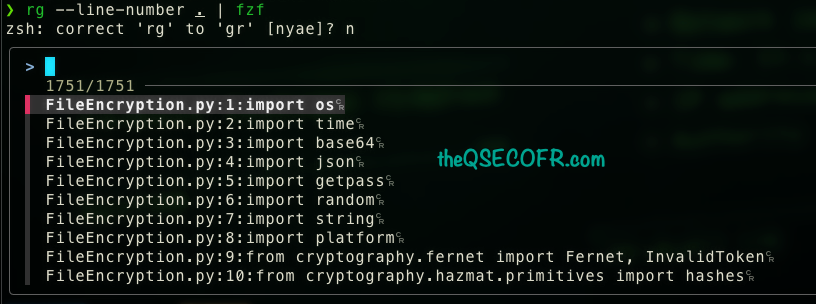
This is incredibly useful for developers.
10. Using fzf in Scripts
fzf can turn scripts into interactive tools.
Example:
#!/bin/bash
file=$(ls | fzf)
vim "$file"
This creates an interactive file picker.
My Favorite Advanced Setup
Install these tools for best experience:
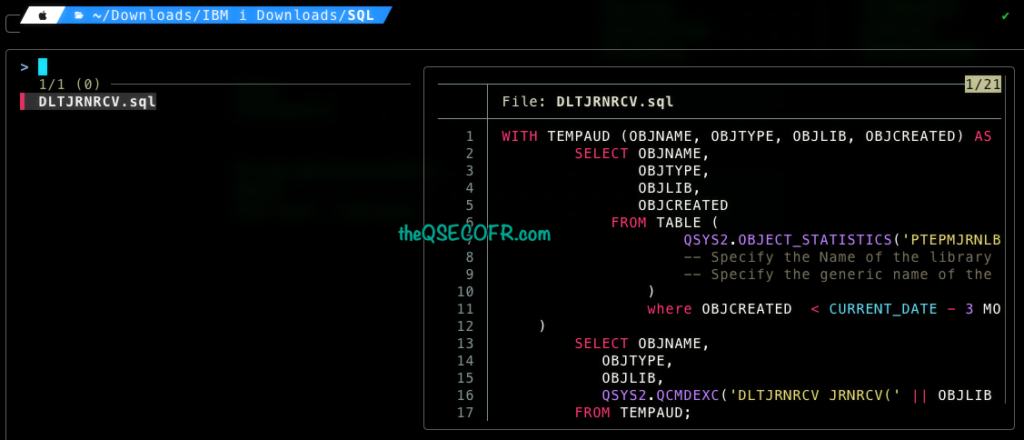
brew install fzf fd ripgrep batThen configure preview:
export FZF_DEFAULT_OPTS="--height 40% \
--layout=reverse \
--border \
--preview 'bat --style=numbers --color=always {}' \
--preview-window=right:60%"
This shows file preview while browsing.
Why fzf is Essential for Developers and Sysadmins
fzf dramatically improves:
- File navigation
- Command reuse
- Git workflows
- Server management
- Troubleshooting
- Script usability
Tasks that took minutes now take seconds.
My Productivity Impact
Before fzf:
- Searching files: slow
- Reusing commands: painful
- Navigating directories: inefficient
After fzf:
- Everything is instant
- Less typing
- Less context switching
- More focus on real work
fzf is now one of the first tools I install on every system.
Final Thoughs
fzf is one of the most powerful terminal productivity tools available today. It is fast, flexible, and integrates seamlessly into almost any workflow. If you use the terminal regularly on macOS or Linux, installing fzf is one of the best productivity upgrades you can make. Once you start using it, you won’t want to work without it.