If you are new to IBM i operations or if you want to strengthen your fundamentals, this post will walk you through the core operational areas every IBM i administrator must understand. Think of this as your practical foundation before you move into security, performance tuning, backups, and automation.
In this first part of the series, I’ll explain how IBM i operators interact with the system, manage devices, handle printer output, work with storage, and use the control panel effectively.
Table of Contents
Understanding IBM i System Interfaces
IBM i offers multiple system interfaces, each designed for a specific type of user or task. As an operator or administrator, you will switch between these regularly.
1. 5250 Green Screen Emulator (Character-Based Interface)
The 5250 interface remains the most powerful and precise way to manage IBM i.
You use it to:
- Run CL commands
- Work with jobs, subsystems, and output queues
- Perform low-level operational tasks
- Troubleshoot system issues quickly
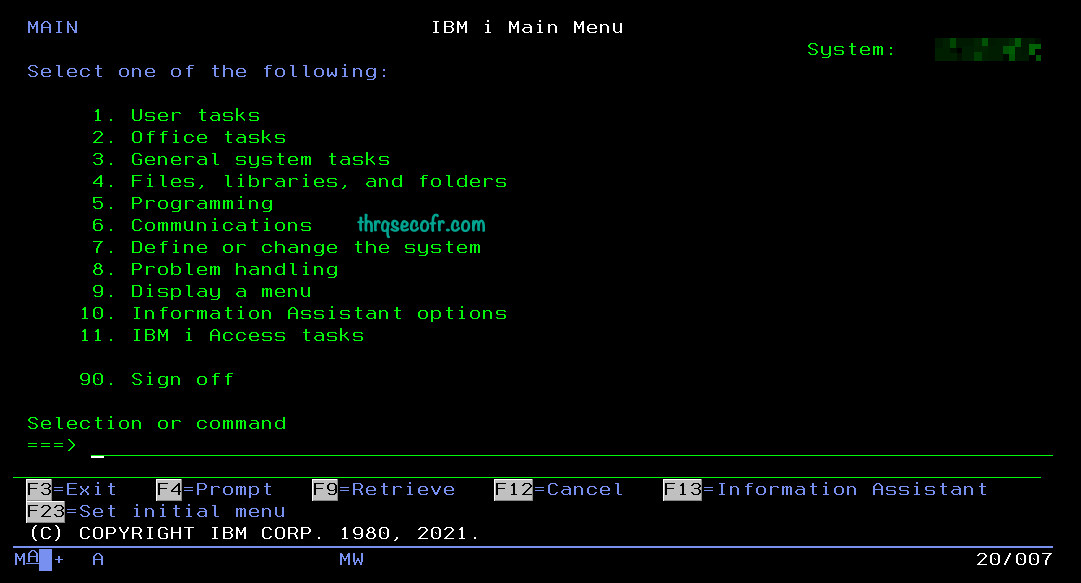
Key menus include:
GOMAIN– Main system menuGO SYSTEM– Core system operations such as jobs, message, save & restore tasks.GO USER– Day-to-day user tasks
Even today, most critical operations still rely on the green screen because it provides speed, clarity, and full control. Honestly, this is still my favorite choice, even though other options have come up with new ideas and improvements.
2. IBM Navigator for i (Web-Based Interface)
IBM Navigator for i offers a browser-based management interface that simplifies administration.
You typically use it to:
- Monitor system health
- Manage printers and output queues
- Start or stop devices
- Review storage usage
- Perform user-friendly administrative tasks
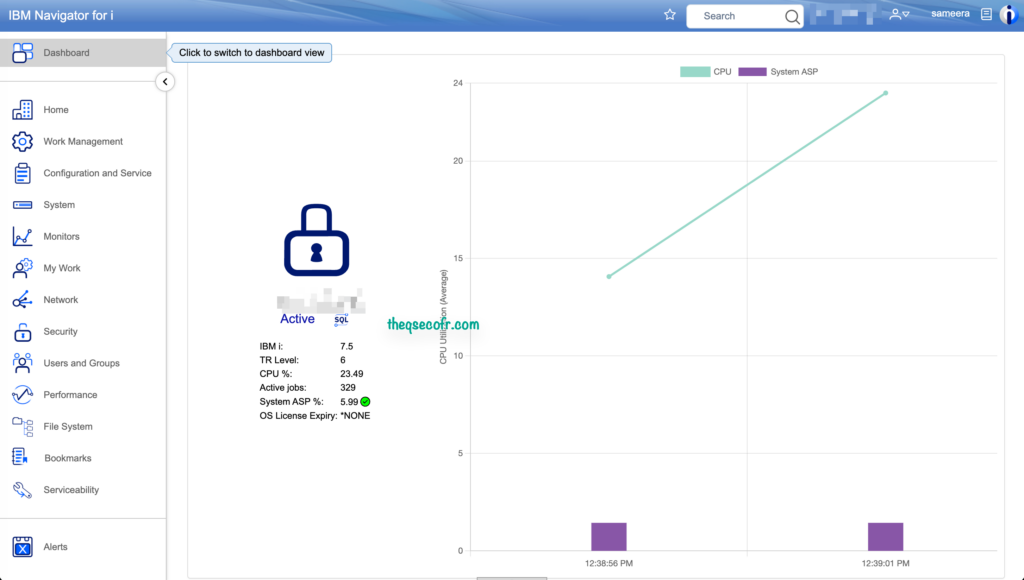
Navigator does not replace the green screen—but it complements it. Many administrators use Navigator for visibility and 5250 for execution.
3. System Service Tools (SST) and Dedicated Service Tools (DST)
SST and DST provide low-level access to hardware-related functions.
You use these tools to:
- Manage disk units and ASPs
- Configure hardware resources
- Perform recovery operations
- Diagnose serious system issues
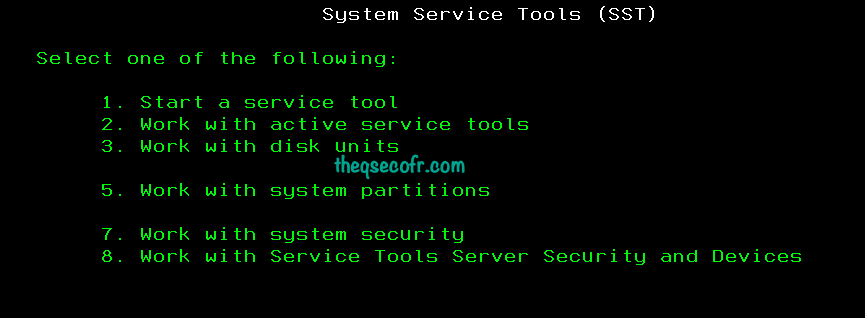
Access usually happens during IPL or via restricted system states, so these tools require care and experience.
Working with Devices in IBM i
Devices form the backbone of your IBM i environment, from tapes and disks to displays and printers. You manage them actively to keep everything running smoothly.
Viewing and Managing Devices
You begin by viewing devices with the WRKDEVD (Work with Device Descriptions) command. This lists all hardware, letting you check:
- View device status
- Vary devices on or off
- Identify device errors
- Troubleshoot connection issues
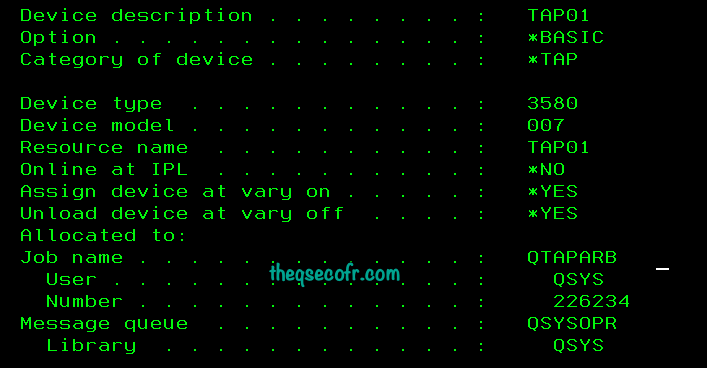
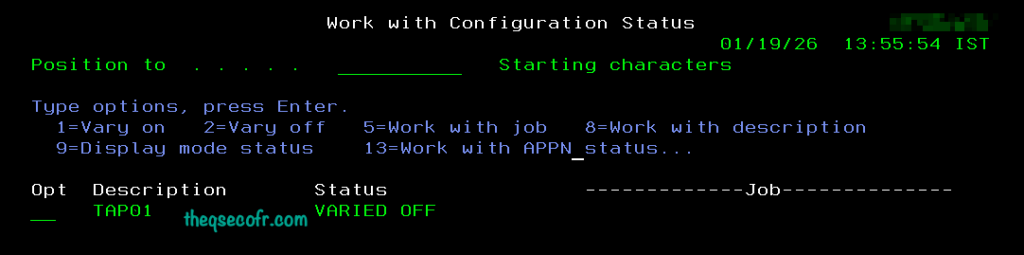
Device statuses such as ACTIVE, VARIED OFF, or NOT READY immediately tell you where to focus.
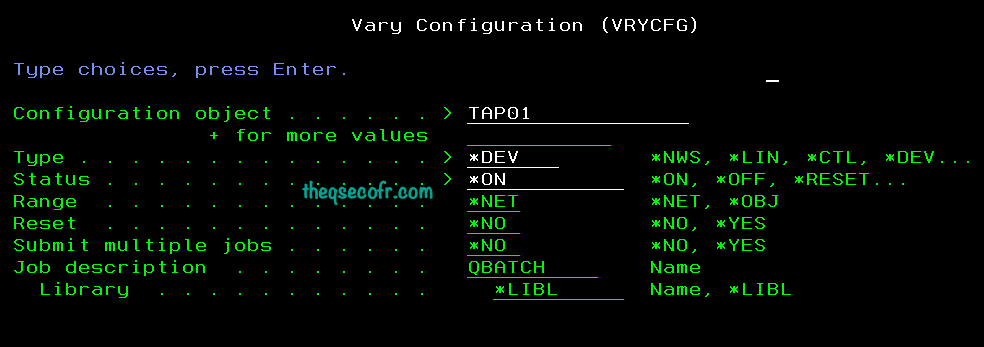
For instance, you vary on/off a device with VRYCFG command.
- Varying on a device
VRYCFG CFGOBJ(device-name) CFGTYPE(*DEV) STATUS(*ON) - Varying off a device
VRYCFG CFGOBJ(device-name) CFGTYPE(*DEV) STATUS(*OFF)
You will perform these actions often when handling printer/tape issues or maintenance windows.
You handle different device types uniquely.
- For tape drives, you use commands like
WRKMLBSTS,WRKCFGSTS *DEV TAP*orWRKTAPCTG DEV('your tape library')to monitor, configure and initialize tapes. - Disk units? You rely on
WRKDSKSTSto see performance metrics and balance loads. - For your ethernet interfaces?
WRKCFGSTS CFGTYPE(DEV) CFGD(CMN)
If issues arise, you troubleshoot with DSPHDWRSC TYPE(resource type) (Display Hardware Resources) to inspect configurations. You create new device descriptions using CRTDEVD* (CRTDEVOPT, CRTDEVPRT,..) commands, specifying parameters like model and port.
In IBM i device management, you prioritize regular checks to prevent downtime. I always schedule jobs and and run periodic monitors to monitor device health—it’s a game-changer for proactive administration.
Working with Printer Output (Spool Files)
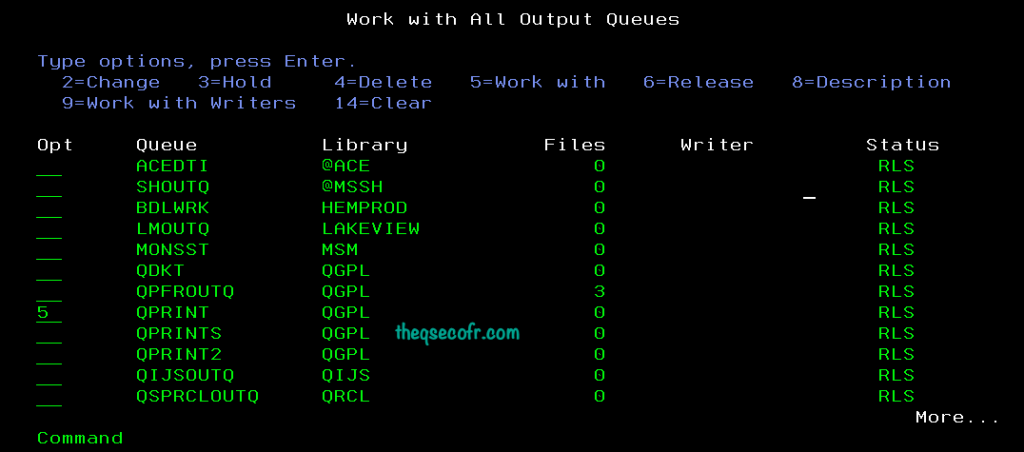
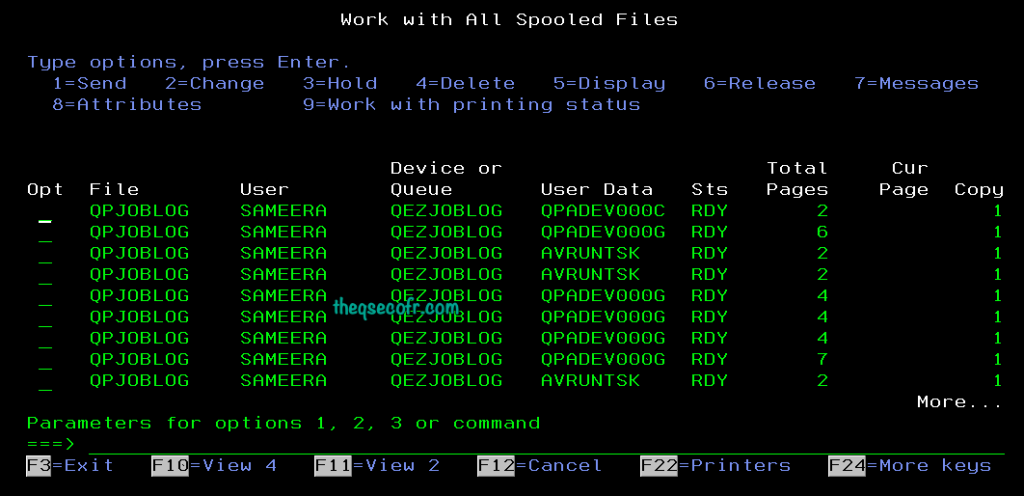
Printer output management is a daily responsibility for IBM i operators. Every report, invoice, or batch job output creates a spool file, which resides in an output queue.
Viewing Printer Output
Use:
WRKOUTQ
or WRKSPLF
via IBM Navigator for i
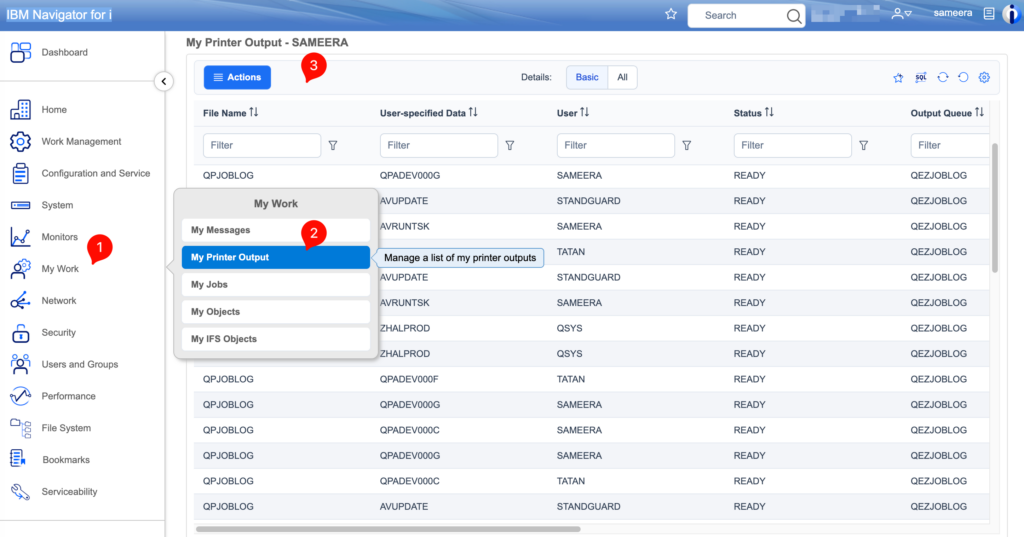
Via IBM IBM i Access Client Solutions (IBM ACS)

These commands allow you to:
- View spool files
- Hold or release output
- Delete unnecessary reports
- Reprint documents
Managing Printer Output Effectively
Good spool file management prevents:
- Disk space waste
- Output queue backlogs
- Performance degradation
Operators should regularly:
- Delete obsolete spool files
- Monitor output queues for errors
- Ensure printers process output correctly
Starting and Managing Printers
To start a printer from the command-line interface, follow these steps:
- Vary on the printer.
- Enter
WRKCFGSTS *DEV *PRTcommand.The Work with Configuration Status display shows a list of devices. - Enter a 1 next to the printer device description to vary on the printer.
- Enter
- Use the Start Print Writer (
STRPRTWTR) command to start the print writer, and specify the printer and output queue (or queues) that the writer will service.
STRPRTWTR DEV(printer-name)
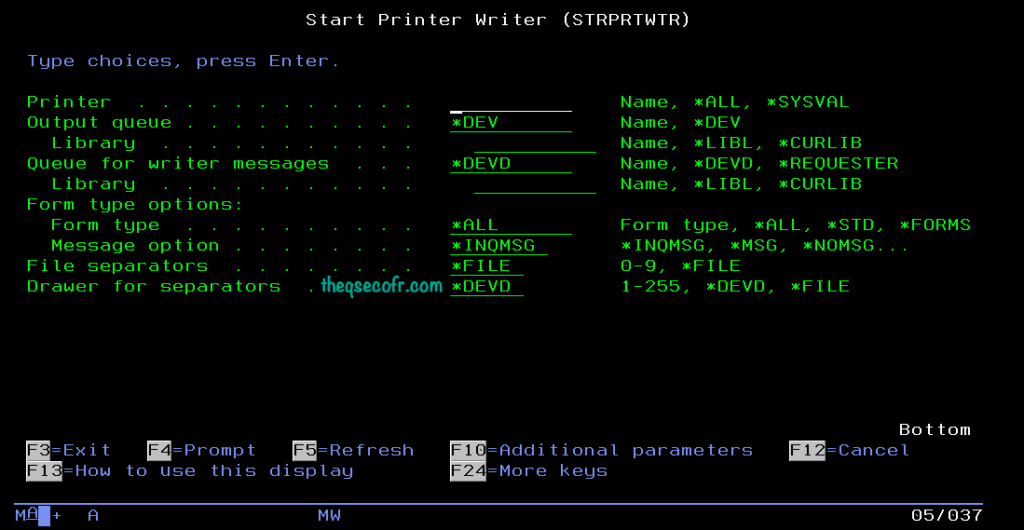
You can also manage printers visually using IBM Navigator for i, which simplifies:
- Starting printers
- Viewing printer status
- Associating output queues
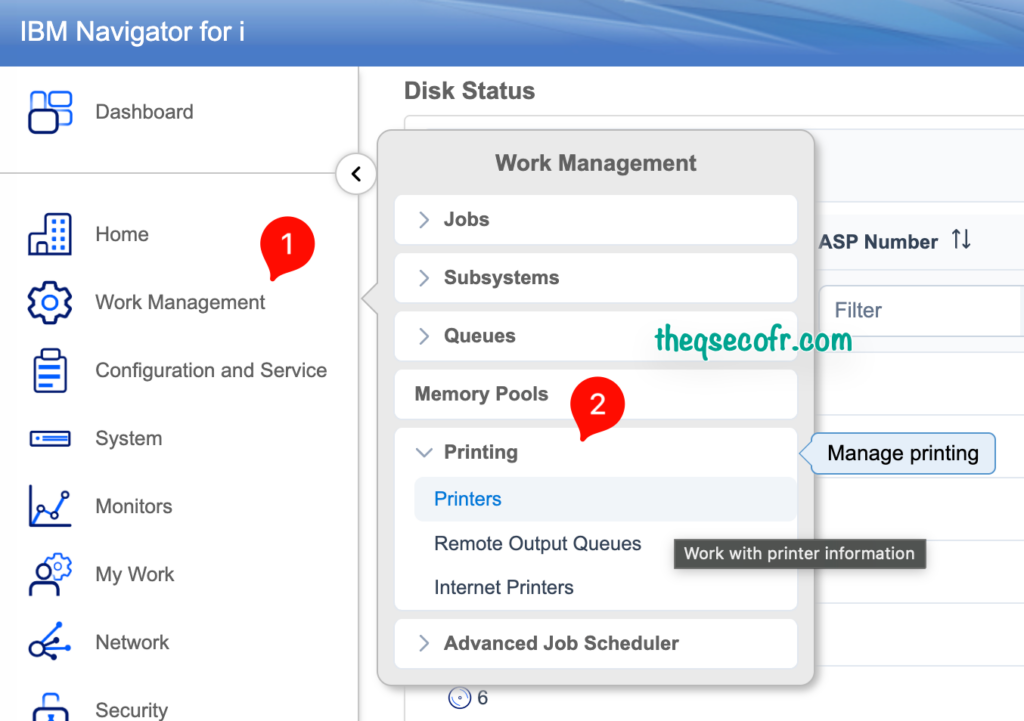
Navigator works well for junior operators, while experienced admins often prefer CL commands.
Working with Storage on IBM i
IBM i storage management differs from traditional file systems. IBM i uses a unique architecture called Single-Level Storage. This means the system treats all disk space (SSD, HDD) and Main Memory (RAM) as one massive pool of addressable space. The system manages storage automatically, but operators still need to monitor and understand usage.
As an administrator, your job is to monitor “ASP” (Auxiliary Storage Pool) usage. If your disk space hits 90% or higher, the system performance will degrade, and eventually, the system will crash to protect data integrity. Regularly use the WRKSYSSTS command to check your “% system ASP used.”
Viewing Disk and Storage Information
Common commands include:
WRKDSKSTS
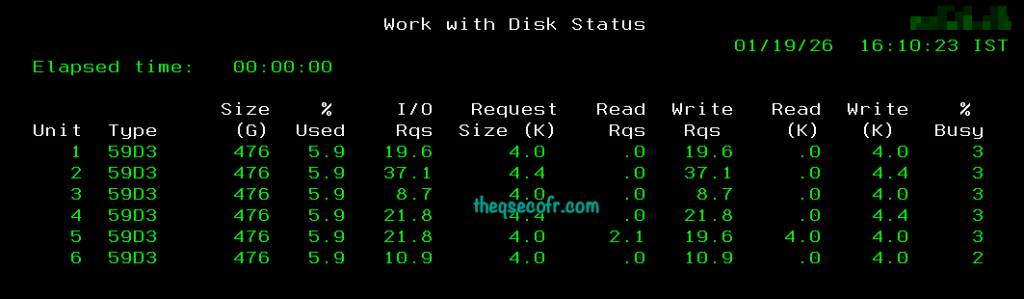
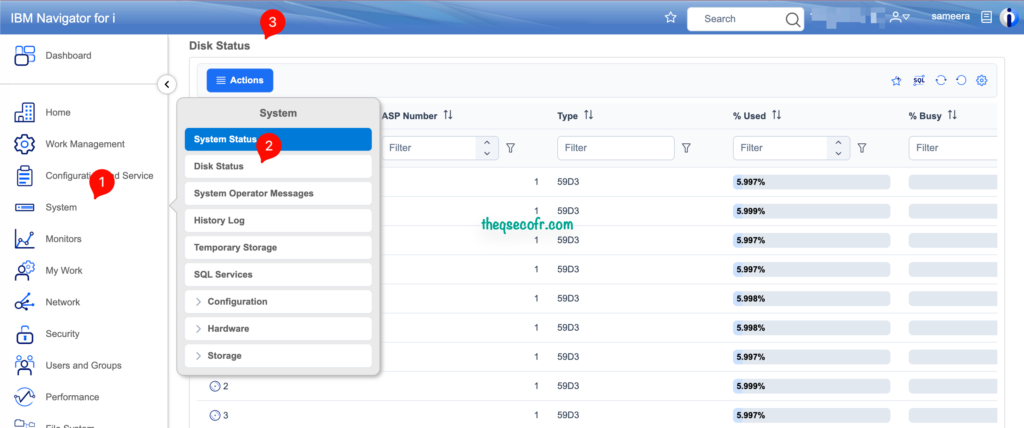
WRKSYSSTS
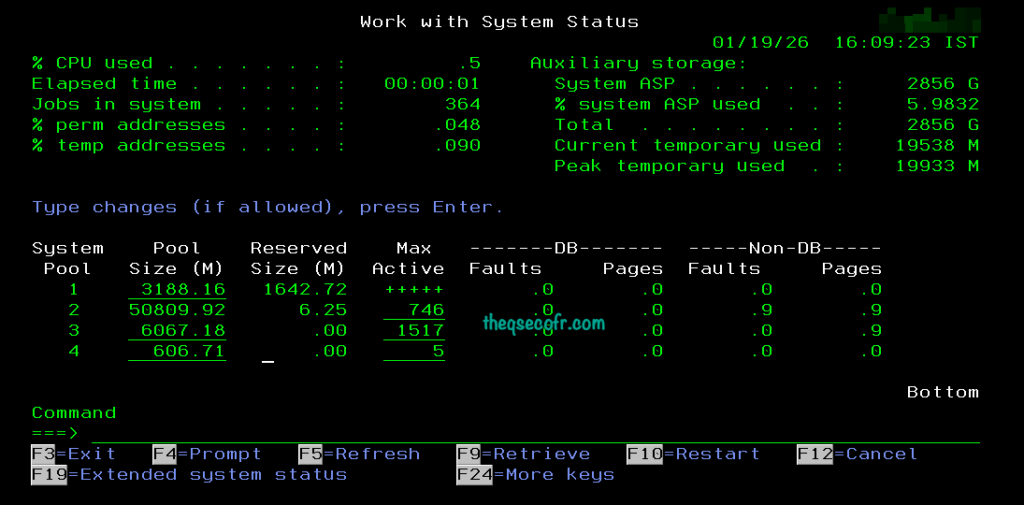
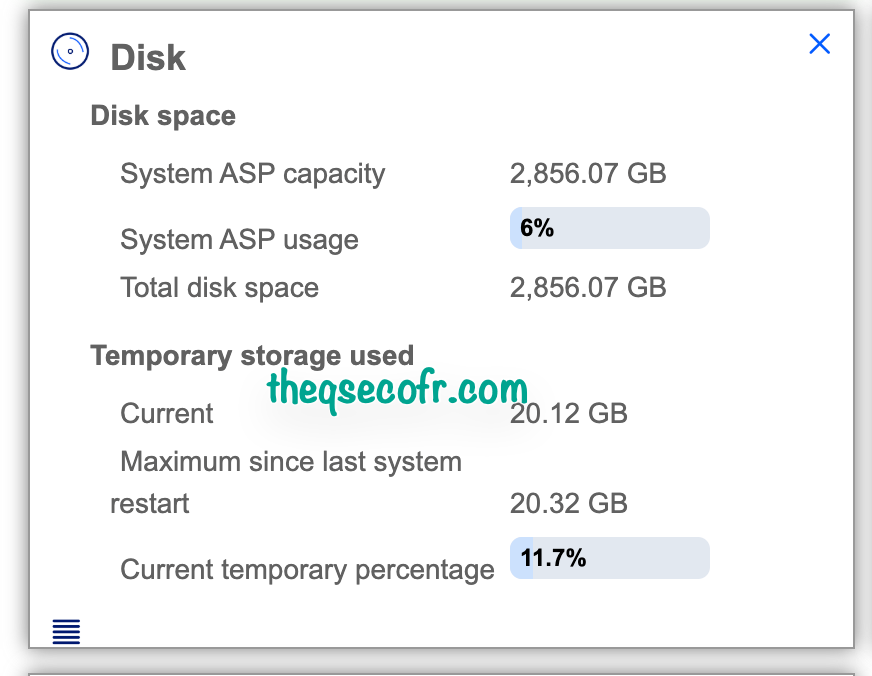
These commands show:
- Disk utilization
- ASP status
- Read/write performance indicators
Why Storage Monitoring Matters
Ignoring storage can lead to:
- System slowdowns
- Job failures
- Unexpected outages
Operators should:
- Monitor disk usage regularly
- Watch for high ASP utilization
- Investigate abnormal growth in objects or spool files
IBM i handles storage efficiently—but it still needs human oversight.
Working with the IBM i Control Panel
The control panel provides direct system-level interaction, especially during startup, shutdown, or failure scenarios. Control panels include the virtual control panel and the physical control panel. You can use these control panels to perform almost all of the same functions.
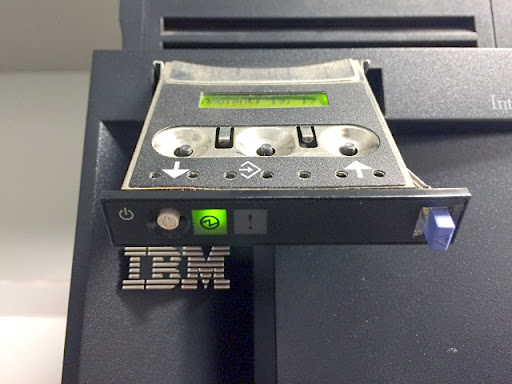
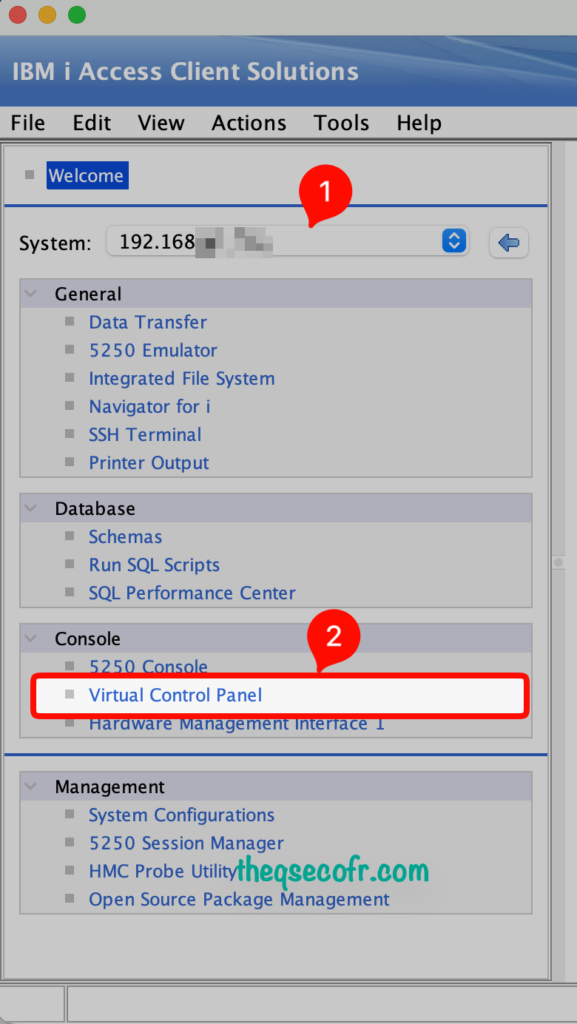
Physical ones have buttons and LCD displays showing system reference codes (SRCs). Virtual panels appear in software like Hardware Management Console (HMC) or Advanced System Management Interface (ASMI). Modern systems use a virtual control panel, but the concepts remain unchanged. The virtual control panel provides a way to perform control panel functions without needing physical access to the server.
The control panel allows operators to:
- Start and stop the system
- Control IPL behavior
- Respond to system reference codes
- Enter recovery commands
It acts as the final layer of control when normal interfaces are unavailable.
Accessing Control Panel Functions
You access control panel functions:
- During IPL
- Through the Hardware Management Console (HMC)
- Via virtualized environments
Operators must understand when and why to use the control panel—improper use can impact system availability.
Understanding Control Panel Functions
Each control panel function corresponds to a specific operational task, such as:
- Selecting IPL types
- Changing system modes
- Handling abnormal system states
The control panel displays “Reference Codes” (those 8-character hex codes). If the system hangs, these codes tell you exactly what the hardware is doing.
- Key concepts include functions (01-70), modes (Normal/Manual), and IPL types (A/B/D for permanent/temporary/manual).
- Functions are categorized by numbers:
- Ex:
- Function 01: Displays the IPL (Initial Program Load) type and speed.
- Function 02: Allows you to change the IPL type (Normal vs. Manual).
- Function 21: Forces a dedicated service tools (DST) menu on your primary console.
- Ex:
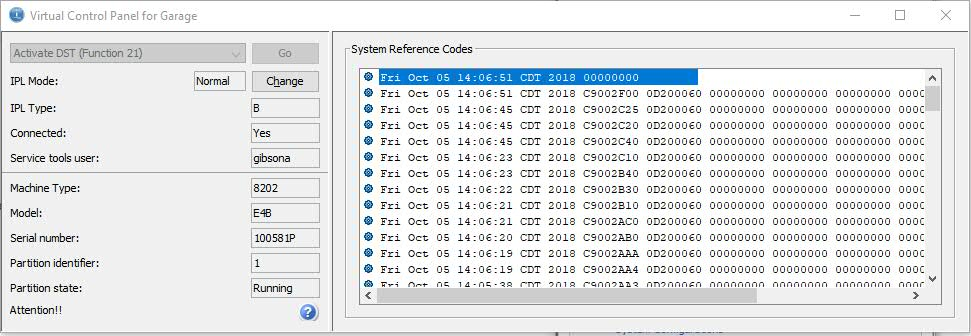
IBM documentation provides detailed explanations for each function, and operators should review these before performing live actions.
Why These Skills Matter for IBM i Administrators
Mastering system interfaces, devices, printers, storage, and control panel operations gives you:
- Faster problem resolution
- Better system stability
- Strong operational confidence
- A solid base for advanced administration
These skills separate reactive operators from proactive administrators.
What’s Next in This IBM i Beginners guide Series
In the next posts, we’ll cover:
- Starting and stopping the system
- IPL concepts in depth (A, B, C, D)
- Overview of basic system operations https://www.ibm.com/docs/en/i/7.6.0?topic=operations-overview-basic-system