One of the reasons organizations trust IBM i is its stability. An IBM i system can run for months—or even years—without a restart. Still, certain maintenance tasks, configuration changes, or recovery situations require you to stop and start the system correctly.
In this post, I’ll explain how IBM i starts, how users sign on, and how to shut down the system safely—without risking data corruption or system instability. These are core operational skills every IBM i administrator must master.
Table of Contents
Why Starting and Stopping IBM i Matters
IBM i rarely needs a restart, but when it does, mistakes can be costly. An improper shutdown can:
- Damage data files
- Leave objects in inconsistent states
- Trigger abnormal IPLs
- Cause unpredictable system behavior
IBM i gives you structured, controlled methods to start and stop the system. Your job as an operator is to use the right method at the right time.
Important note
The procedures in this post apply to non-partitioned systems. If you run IBM i in logical partitions (LPARs), especially with an HMC, the steps differ.
Understanding IBM i Startup: What Is an IPL?
When IBM i starts, it performs an Initial Program Load (IPL).
During an IPL, the system:
- Loads system programs from the load source device
- Initializes system storage
- Checks hardware components
- Starts system resources and subsystems
An IPL does more than “boot” the system. It resets internal structures and prepares IBM i for reliable processing.
If you’re curious about what actually occurs during an IBM i IPL (Restart), I recommend reading my blog post titled “What Really Happens During IBM i IPL (Restart).”
Types of IPLs You Should Know
IBM i supports different IPL methods depending on how much control you need.
Unattended IPL (Normal Startup)
This is the most common startup method.
You use it when:
- No special configuration changes are needed
- The system restarts after planned maintenance
- You want the system to come up automatically
An unattended IPL:
- Resets system storage
- Recognizes configuration changes automatically
- Starts subsystems using the startup program
For day-to-day operations, this is usually the correct choice.
Attended IPL (Interactive Startup)
You perform an attended IPL when you need direct control during startup.
Use this method to:
- Change IPL options
- Install or upgrade the operating system
- Access Dedicated Service Tools (DST)
- Recover from system failures
- Work with logical partitions
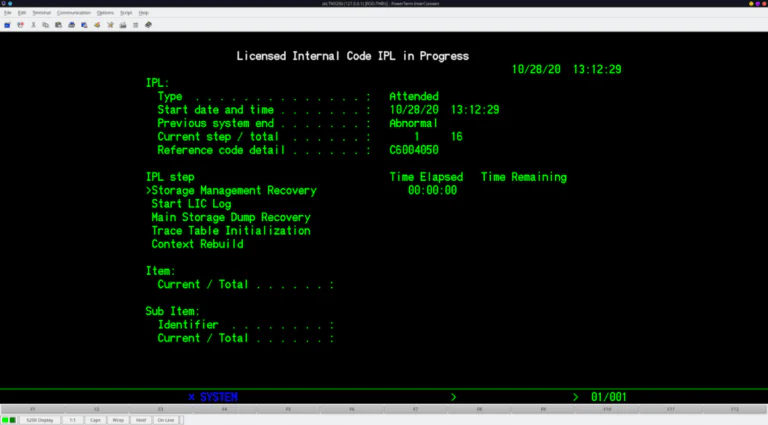
An attended IPL pauses at specific points and asks for operator input. You typically access it through the control panel.
During an IPL, you’ll typically see:
- SRC (System Reference Code) progression: A series of hexadecimal codes on the control panel or HMC indicating the boot stage.
- Operator Panel Function 21 (ATTN): A brief message indicating the system is ready for the console to connect.
- IPL Completed Message: On the console, you’ll eventually see the sign-on screen.
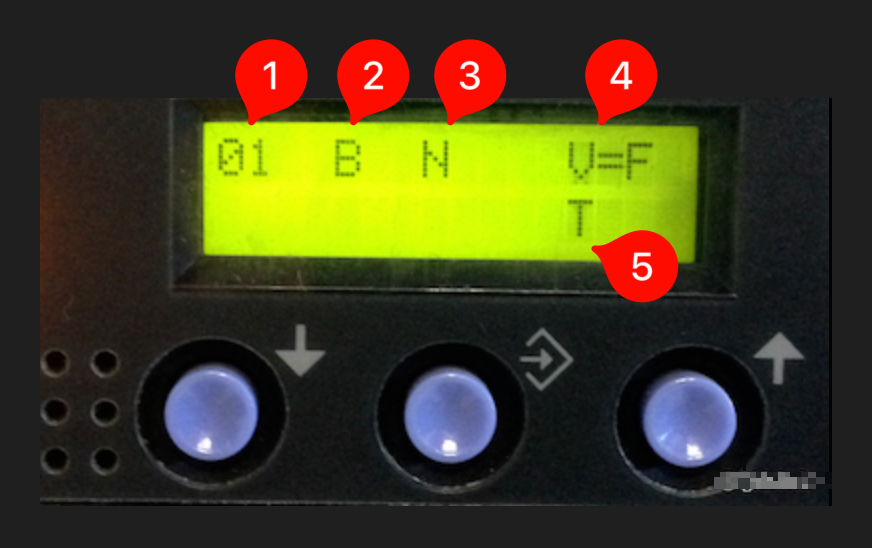
Changing IPL Behavior from the Control Panel
The control panel lets you:
- Select the IPL type
- Change startup options
- Enter recovery or service modes
You normally use this approach when:
- The system fails to start normally
- You need to override startup behavior
- Hardware or storage issues exist
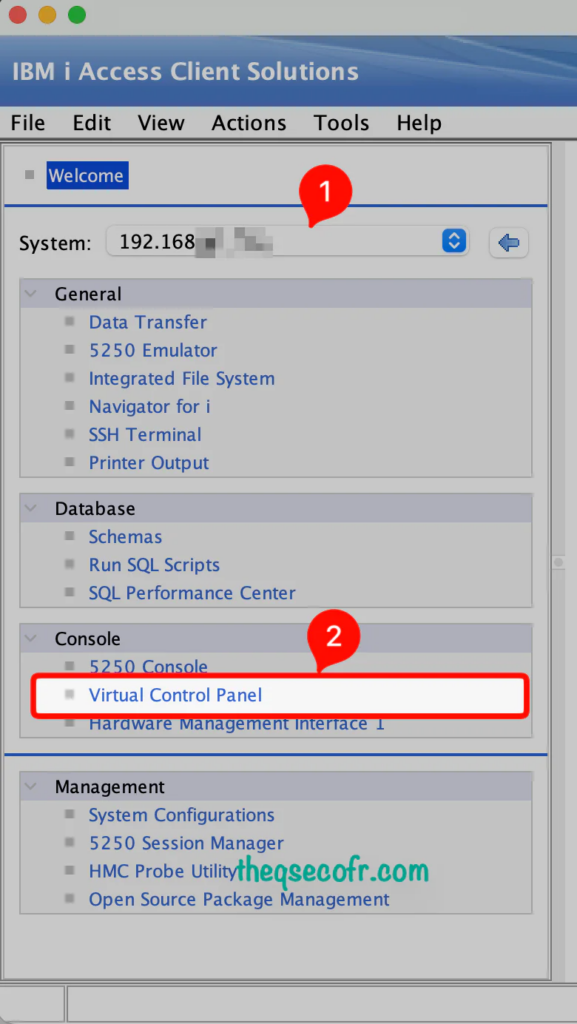
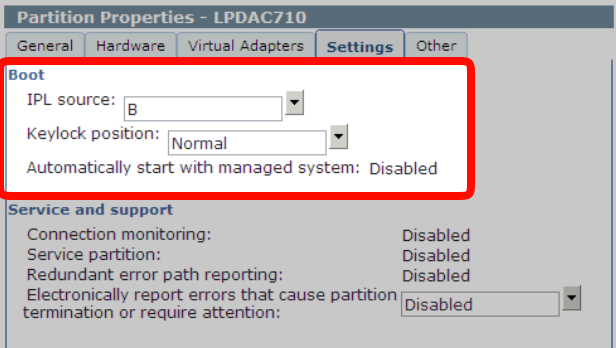
Modern systems use virtual control panels, but the operational concepts remain the same.
The Role of the IPL Startup Program
The startup program defines what IBM i starts automatically after an IPL.
This program typically:
- Starts subsystems
- Starts printer writers
- Launches Operational Assistant
- Sets system-wide operational behavior
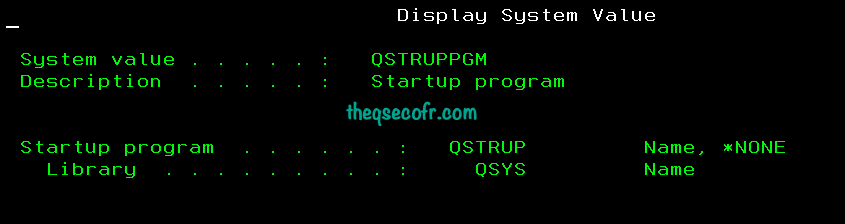
You can change the startup program using system values. A well-designed startup program ensures:
- Consistent system behavior
- Faster recovery after IPL
- Minimal manual intervention
Scheduling a System Shutdown and Restart
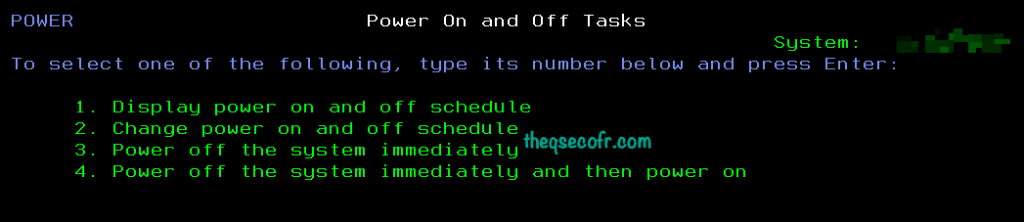
IBM i allows you to automate power operations.
You can:
- Schedule daily shutdowns and startups
- Define exceptions such as holidays or special closures
- Reduce manual operational effort
This feature helps organizations that operate on fixed schedules or require predictable downtime windows.
Causes of Abnormal IPLs
An abnormal IPL usually indicates a problem, not a planned action.
Common causes include:
- Power failures
- Hardware errors
- System crashes
- Forced power-offs
After an abnormal IPL, always:
- Review system logs
- Check job logs
- Verify system integrity before resuming operations
Signing On to the IBM i System
Before anyone can use IBM i, they must sign on.
The sign-on process:
- Verifies the user’s password.
- Loads the user profile.
- Applies language, authority, and environment settings.
This process enforces security and accountability across the system.
Signing On Using IBM Navigator for i
Navigator for i allows users to:
- Sign on through a web browser.
- Access administrative and operational functions.
- Manage system resources visually.
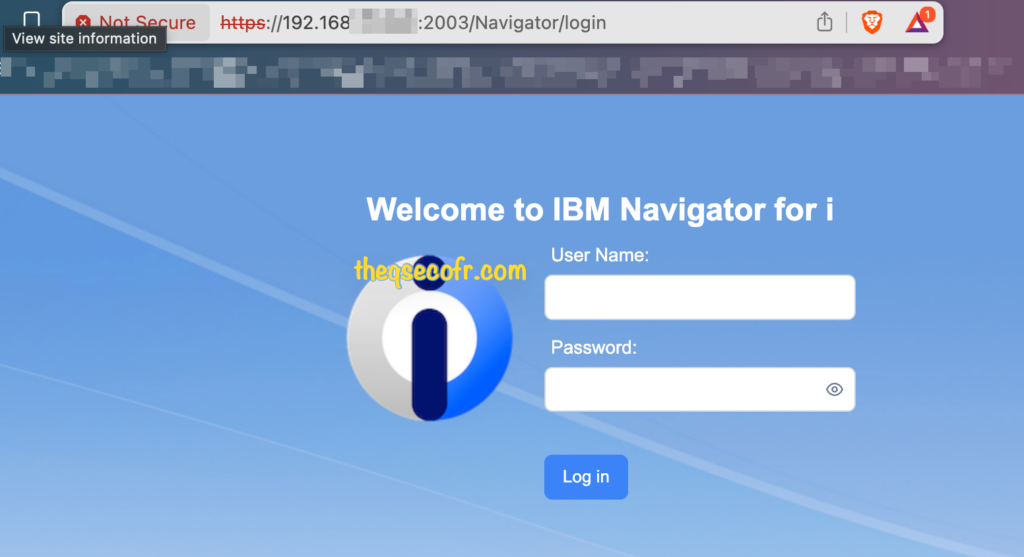
This method suits administrators who prefer a graphical interface.
Signing On Using the 5250 Character-Based Interface
The 5250 interface remains the most common and powerful sign-on method.
It provides:
- Direct access to commands
- Faster navigation for experienced operators
- Full system control
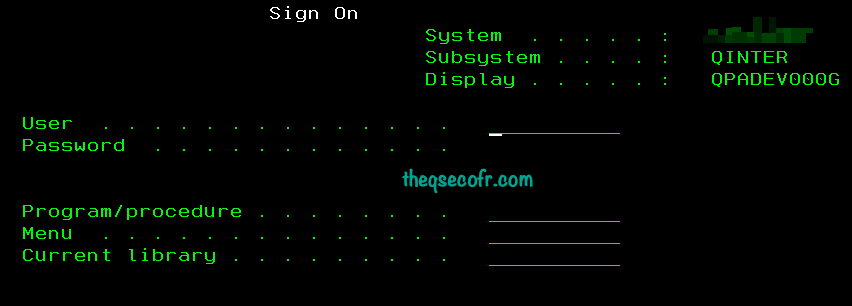
Most operational tasks still start here.
Changing Passwords
During installation or certain IPLs, IBM i may require password entry to continue.
Password management ties directly to:
- User profile security
- System compliance requirements
- Access control policies
Operators should enforce strong password practices at all times.
Stopping the IBM i System Safely
Stopping IBM i requires planning and discipline. Never power off the system casually.
Before shutting down, always follow a structured process.
Step 0: Pre-IPL Checks (if manual intervention is needed)
- Verify Power: Ensure all hardware components (system unit, expansion units, storage) are powered on.
- System Console: Make sure your Hardware Management Console (HMC) or system console is active and ready.
The Process Overview:
- Notify Users: Give everyone ample warning.
- End Applications/Subsystems: Stop non-essential applications and subsystems.
- End Remaining User Jobs: Ensure all users are signed off.
- Power Down: Issue the
PWRDWNSYScommand.
Step 1: Ensure Users Are Signed Off
First, notify all users and ask them to sign off.
Steps:
- Run:
GO MANAGESYS - Select Option 12 – Work with signed-on users
- or use
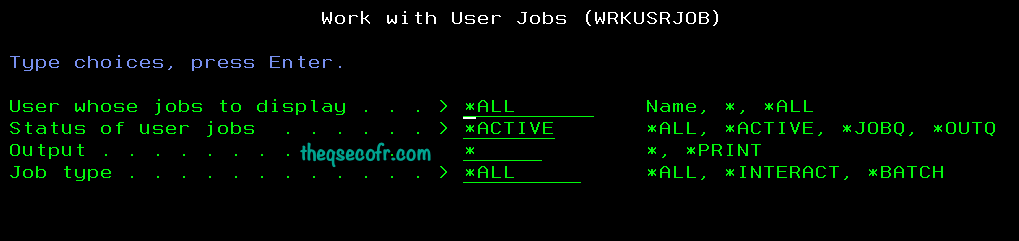
WRKUSRJOB USER(ALL) STATUS(ACTIVE) JOBTYPE(*INTERACT)
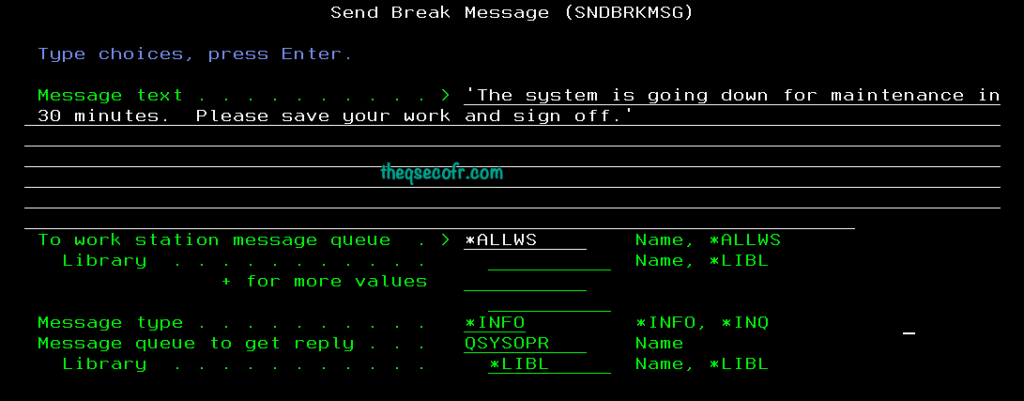
- Before forcing anyone off, it’s best practice to send a “break” message. This pops up on their screen immediately, regardless of what they are doing.
SNDBRKMSG MSG('The system is going down for maintenance in 30 minutes. Please save your work and sign off.') TOMSGQ(*ALLWS)
- Wait for users to sign off.
- Refresh the display until only your session remains.
If needed, you can force a sign-off using Option 4 (END)
Step 2: Prevent Users from Signing Back On
If your system uses multiple interactive subsystems:
- End interactive subsystems after users sign off
- Prevent new sessions before shutdown
Commands:
WRKSBSand Option 4 individual subsystemsENDSBSfor all subsystems or individual subsystems
End Non-Essential Subsystems (Optional but Recommended)
If you have specific applications running in their own subsystems (e.g., for ERP, warehouse management), it’s good practice to end them cleanly first. This prevents abrupt termination of those processes.
ENDSBS SBS(YourSubsystemName) OPTION(*CNTRLD) DELAY(60)OPTION(*CNTRLD): Gives jobs a chance to end gracefully.DELAY(60): Specifies a 60-second delay for jobs to end. Adjust as needed.
Step 3: Check Batch Jobs
Before shutdown:
- Verify that critical batch jobs have completed
- Hold job queues if jobs are waiting
Steps:
GO MANAGESYS- Select Option 11 – Work with jobs
This step protects data consistency.
Step 4: Check Removable Media
Before powering down:
- Remove tapes from tape drives
- Remove DVDs from optical units
Leaving media mounted during shutdown can cause errors.
Safe Ways to Stop the IBM i System
IBM i provides multiple safe shutdown methods.
Using the PWRDWNSYS Command
This is the preferred method.
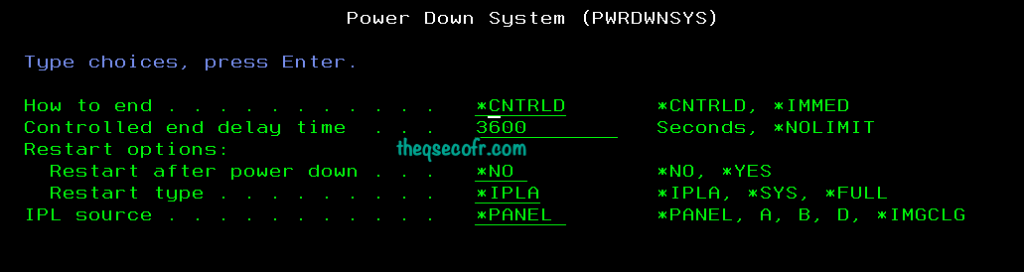
PWRDWNSYSYou can choose:
- Controlled shutdown – *CNTRLD
- Immediate shutdown – *IMMED
- Shutdown with automatic restart – Restart after power down . . . *NO, *YES
Always use this command when possible.
Using the POWER Menu
You can also use:
GO POWERThe Power On and Off Tasks menu provides guided options for:
- Power on and off schedule
- Powering off
- Powering off and restarting
This menu helps operators avoid mistakes.
Using the Power Button (Emergency Only)
Use the power button only as a last resort.
Emergency shutdown:
- Bypasses normal cleanup
- Risks data corruption
- Can cause abnormal IPLs
Only use this option when no software-based method works.
Key Takeaways for IBM i Operators
- IBM i rarely needs a restart—but when it does, precision matters
- Always plan IPLs and shutdowns
- Use unattended IPLs for normal operations
- Use attended IPLs for recovery or system changes
- Never power off the system without proper shutdown steps
Mastering these procedures keeps your IBM i environment stable, secure, and predictable.
- IBM i Basic System Operations (Initial Program Load & Power Down)
Detailed online PDF covering unattended IPLs, controlled shutdowns, and sign-on screen after IPL.
🔗 https://www.ibm.com/docs/en/ssw_ibm_i_74/pdf/rzal2pdf.pdf (see section on Starting and stopping the system & IPL behavior) - IBM i System Administration Overview (Upgrade & IPL Context)
IBM outlines why starting, stopping, signing on, and IPL control are critical parts of system admin tasks during maintenance or installation.
🔗 https://www.ibm.com/docs/en/ssw_ibm_i_76/pdf/sc415120.pdf (see sections about restarting the system and basic system operations) - IBM Navigator for i – Web-Based Management Interface
This page describes IBM Navigator for i, the web interface you can use to sign on and manage your IBM i system graphically (alternative to 5250).
🔗 https://www.ibm.com/support/pages/ibm-navigator-i - IBM Navigator for i Documentation on Functional Areas
Lists the major components and pages you’ll interact with after signing on to Navigator for i (helpful to link for readers exploring sign-on methods).
🔗 https://www.ibm.com/support/pages/ibm-navigator-i-documentation-functional-areas