If you manage an IBM i environment, you know that keeping your system stable isn’t just a “good idea”—it’s a necessity. Whether your IBM i system runs critical business apps or backend services, keeping your system patched and reliable is non-negotiable. That’s where PTFs come in — and if you’ve ever hesitated before installing one, this guide walks you through the purpose, types, how to install them, and how A/B sides and IPL (Initial Program Load) matter.
Table of Contents
What Exactly is an IBM i PTF?
PTF stands for Program Temporary Fix — a bundle of fixes, updates, or enhancements IBM distributes for IBM i. While “temporary fix” sounds minor, modern PTFs do much more than fix tiny bugs — they include technology refreshes, security updates, cumulative OS patches, and most PTFs become a permanent part of your system once you verify they work correctly.
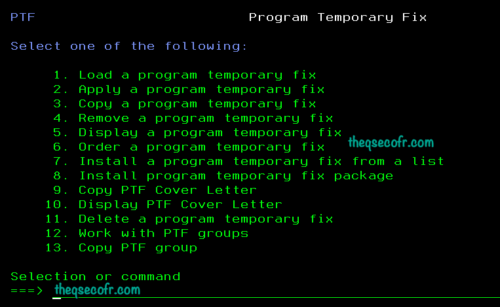
What Does a PTF Do
- Fixes bugs reported by users or IBM.
- Patches security vulnerabilities.
- Updates OS functions and tools.
- Delivers new technology updates via Technology Refresh (TR) PTFs.
- Some PTFs also improve performance or hardware support.
Types of PTFs
Not all PTFs are created equal. Knowing which one you’re looking at helps you prioritize your maintenance. IBM i PTFs come in several flavors:
- Individual PTFs – Fix specific issues (e.g., a bug in a program or subsystem). You can load and apply them one by one.
- Group PTFs – A collection of related PTFs — such as all database fixes, HIPER fixes (critical ones), HTTP group, etc.
- HIPER PTFs: “High Impact Pervasive” fixes. These are critical patches for issues that could cause system crashes or data corruption.
- Database Group PTFs: You get database enhancements released since your OS version’s general availability. They keep your data operations efficient.
- Technical Refresh PTFs (TR) – These are not tiny bug fixes. They deliver new features and updates similar to a release upgrade but as a PTF package tied to your OS level.
- Cumulative (CUM) PTF Packages – You install these comprehensive bundles that include all fixes up to a certain point for the OS, Licensed Internal Code (LIC), and most programs. This includes:
- All fixes from previous cumulative packages
- Most recent group PTFs (including database and HIPER)
- Often the best way to get “most current” status
- Only the latest cumulative package needs to be installed; earlier ones stack into it.
Choose the type based on your needs—individuals for quick hits, groups for themed updates, and cumulatives for broad coverage.
PTF Purpose & When to Install
Each PTF has a purpose:
| Type | Purpose |
|---|---|
| HIPER | Critical, pervasive fixes |
| Pre-requisite | Needed before another PTF |
| Co-requisite | Applies together with another PTF |
| Delayed | Applied after IPL |
| Immediate | Can apply now without IPL |
Always read the cover letter with a PTF — it tells you if an IPL is required, if there’s additional action required, or if you need to plan downtime.
How to Order IBM i PTFs
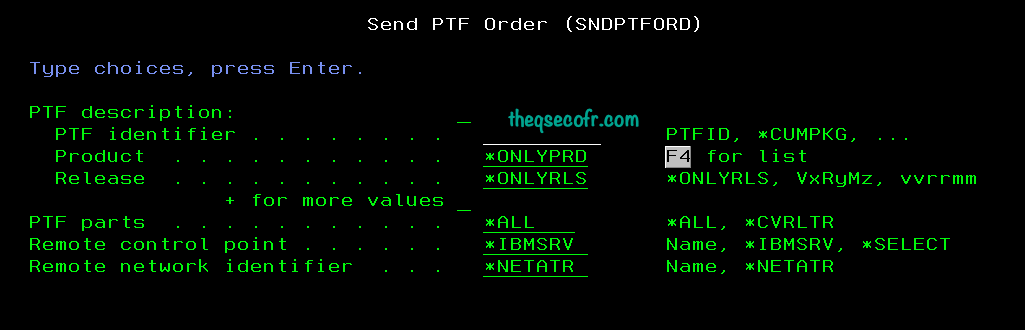
- You start by ordering PTFs electronically—it’s fast and straightforward. Use these commands:
- For individual PTFs: Run
SNDPTFORD PTFID(nnnnnnn), replacing nnnnnnn with the PTF number. You can order up to 20 at once. - For cumulative packages: Execute
SNDPTFORD PTFID(SF99VRM), where VRM matches your version (e.g., SF99750 for V7R5). - For Preventive Service Planning (PSP) info: Use
SNDPTFORD PTFID(SF98VRM)(e.g., SF98750). - You automate this with CHGSRVA ORDPTFAUTO(*YES) or schedule jobs. Always review PSP docs before proceeding to avoid surprises.
- For individual PTFs: Run
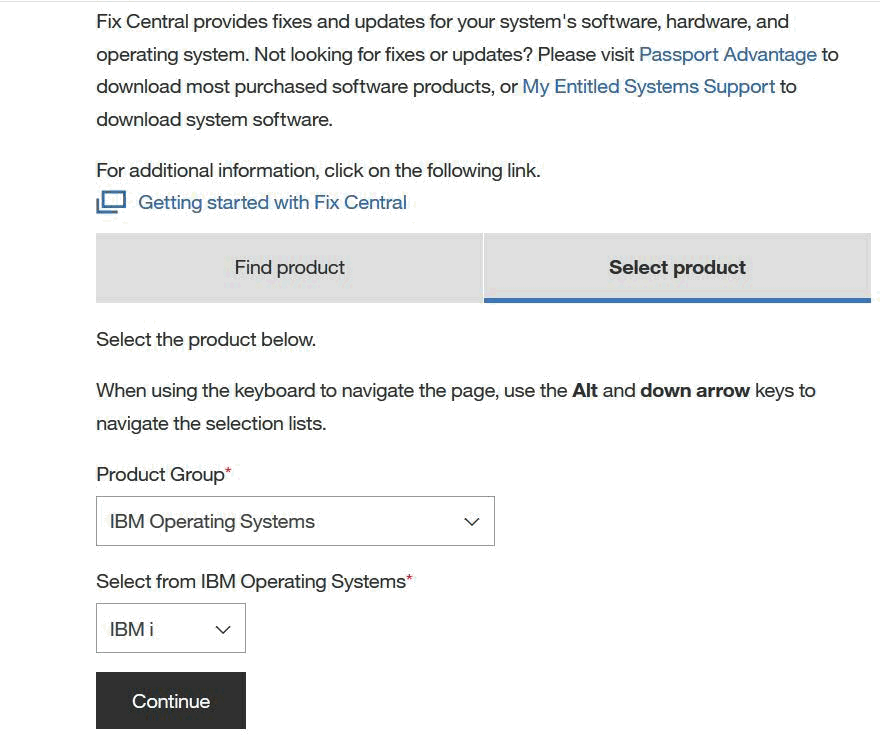
- Download via Fix Central Website: https://www.ibm.com/support/fixcentral/.
- Login to the Fix Central Website and then Select Product, Expand Product Group, select IBM Operating Systems > IBM i and select Continue.
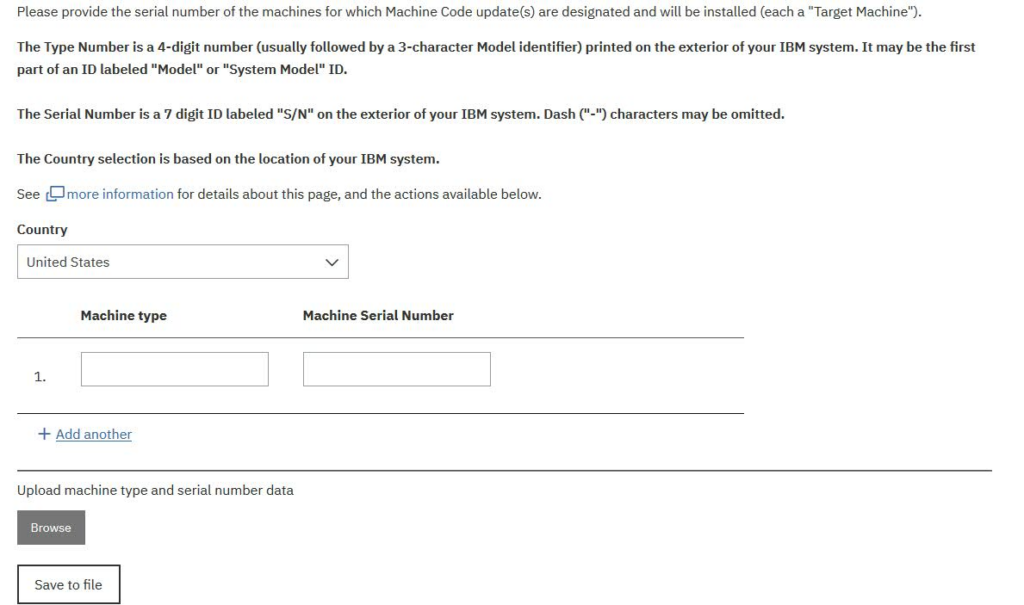
- Use one of the following three options to identify the fixes you would like to order from the Identify Fixes page:
- Cumulative and group PTFs
- Choose the release and select Continue.
- Select the PTF groups from the list to order.
- Note: You may select one or more groups, and then select Continue.
- Cumulative and group PTFs
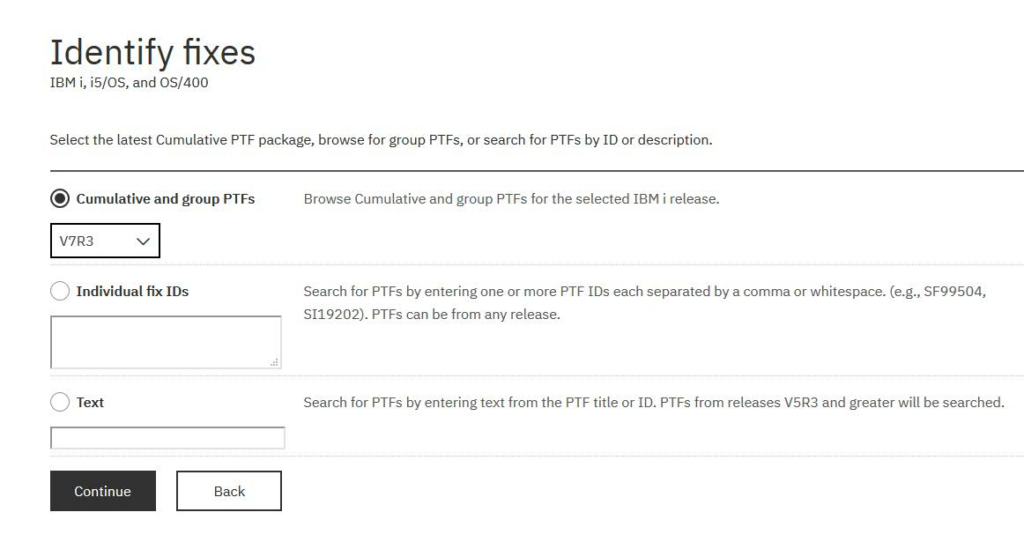
- Individual fix IDs
- Fill in as many PTF IDs as you would like, separate the PTFs with a space, comma, or by entering them on their own line.
- Select Continue.
- Select the PTFs from the list to order, and select Continue.
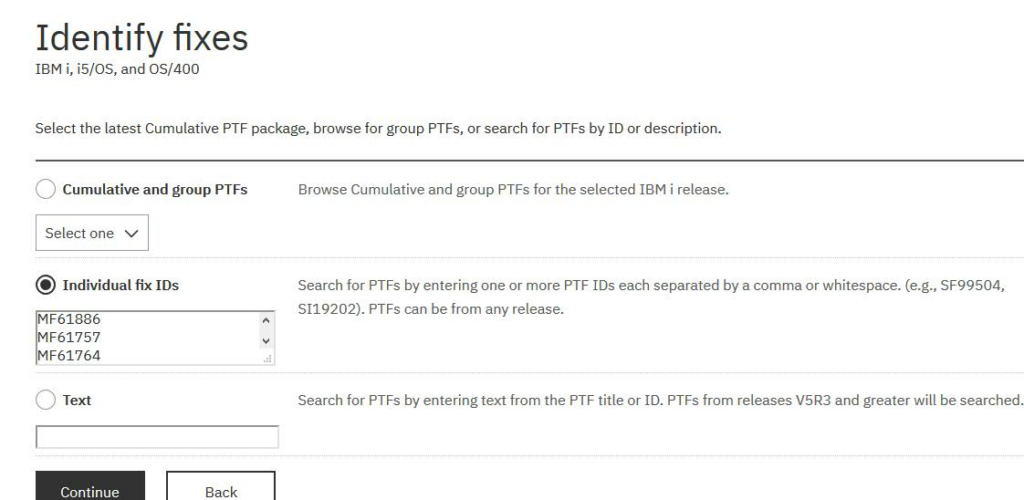
- Text
- Use the Text search to find PTFs for specific products, errors, releases, devices, and so on. The list that will be displayed will be a combination of the group and individual fixes lists.
- Select Continue.
- Select the PTFs from the list to order, and select Continue.
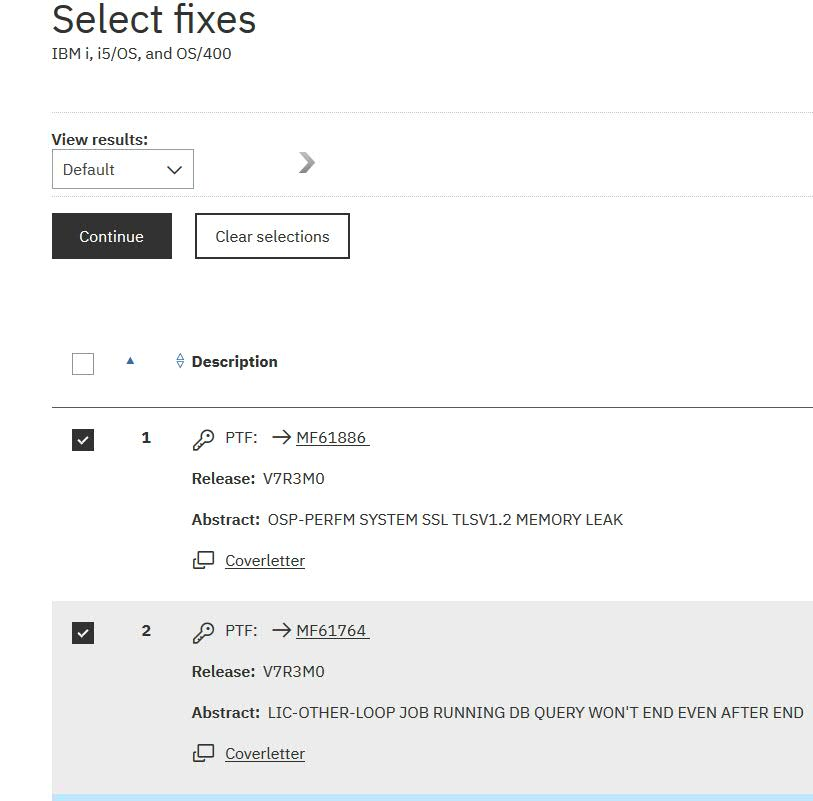
Download Options – Click continue after selecting.
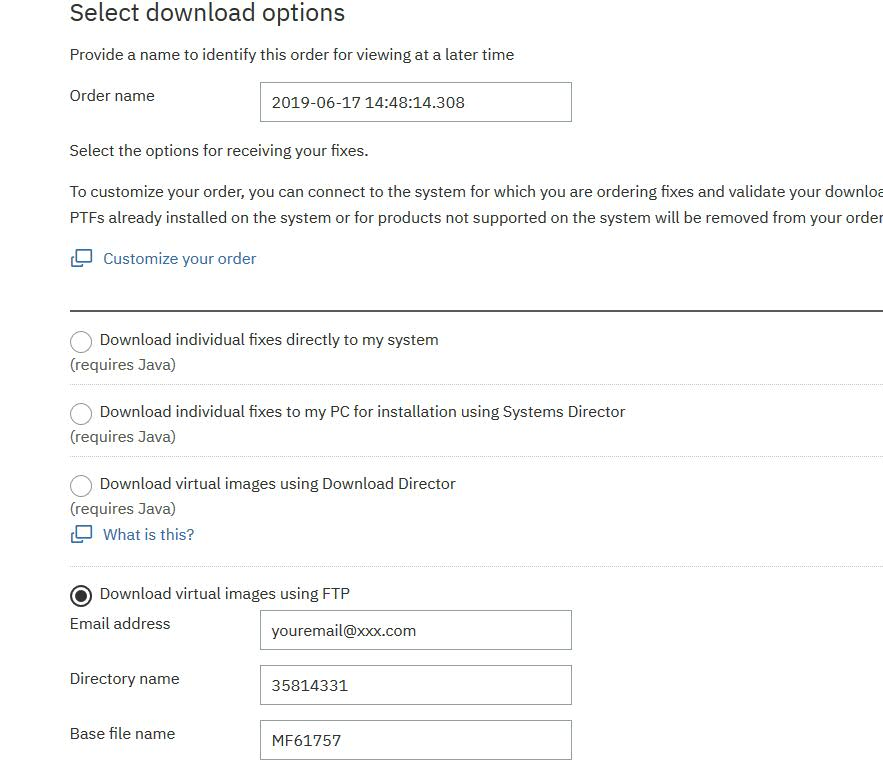
Step-by-Step: How to Install and Update IBM i PTFs
You install PTFs in two main phases: loading and applying. Follow these steps to get it right.
- Preparation: Before you start, check your current status:
WRKPTFGRP– View your current PTF group levelsDSPPTF-Check individual PTF statuses and your IPL side- Recommended settings for system values that affect PTF processing
| System value | Recommended setting |
|---|---|
| QALWOBJRST | *ALL or *ALWPTF |
| QFRCCVNRST | 1 or 0 |
| QIPLTYPE | 0 |
| QVFYOBJRST | 3 or lower |
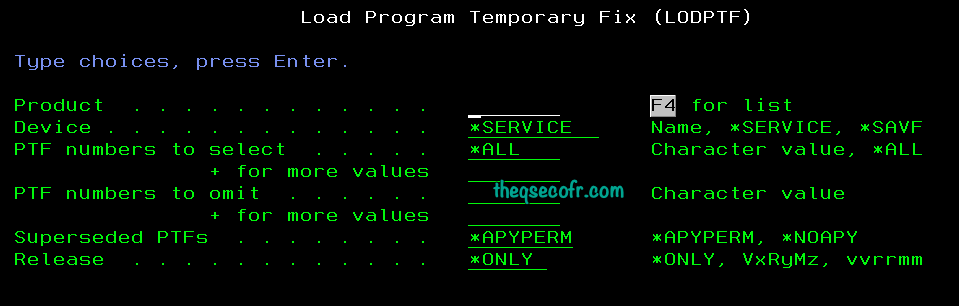
- Load the PTFs: If you have downloaded your fixes (often via SNDPTFORD or an image catalog), use the following:
- Navigate with
GO PTFand pick Option 8 to install. - Set the device to *
SERVICEand choose no automatic IPL. - Or, directly run
LODPTF DEV(*SERVICE)to load from save files. - For multiple files, use tools like
SNDNETF, FTP, or UPDPTFINF.
- Navigate with
- Apply the PTFs:
- From
GO PTF Option 8,select *SERVICEand decide on IPL (Y for auto, N for manual). - Choose which PTFs to apply (e.g., 1 for all).
- For specific control, use
APYPTF LICPGM(57xxYYY) SELECT(SIXXXXX) DELAYED(*YES)for delayed ones.
- From
- If you received your cumulative PTF package as an image
- Type
GO PTFfrom any command line. - Type option 8 (Install program temporary fix package) and press Enter.
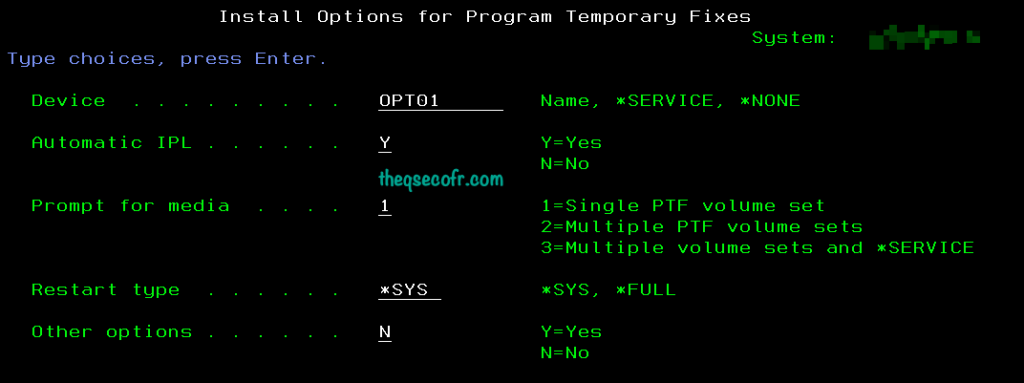
- The Install Options for Program Temporary Fixes display is shown.
- Type
optyy, whereoptyyis name of the optical device (for example, opt01) where you loaded the fix media. - If you want to automatically IPL your system after loading the fixes, type a Y (Yes) in the Automatic IPL field.
- If you are not using an image catalog and have additional fixes to install at this time, type a 2 (Multiple PTF volume sets) in the Prompt for media field, and install the additional fixes.
- Type Y for Other options. The Other Install Options display is shown.
- Type 1 for Apply Type.
- Type 1 for the PTF type.
- Type
- Type
- After loading delayed PTFs, restart with
PWRDWNSYS OPTION(*IMMED) RESTART(*YES) IPLSRC(B)to activate them.
| PTF Type | IPL Required |
|---|---|
| Immediate | No |
| Delayed | Yes |
| HIPER | Usually |
| LIC Fix | Always |
- Update and Verify:
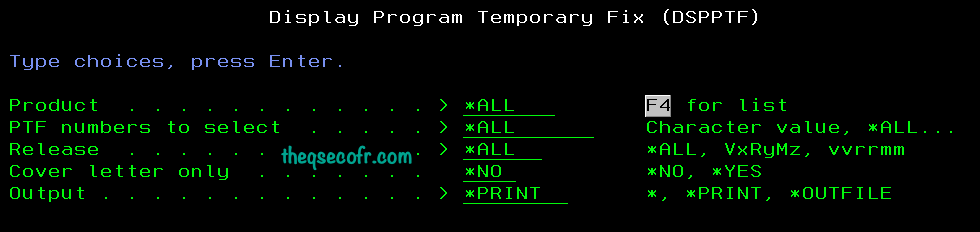
- Check status with
DSPPTF LICPGM(*ALL) SELECT(*ALL) RLS(*ALL) OUTPUT(*PRINT). - Use
WRKPTFGRPfor group overviews. - If something fails, inspect job logs via
DSPJOBLOG OUTPUT(*PRINT).
- Check status with
You handle updates similarly—load new ones and apply over existing setups. Remember, cumulatives are all-inclusive, so you only need the latest.
Best Practices for PTF Management
- Always schedule PTF installs with a maintenance window.
- Apply cumulative PTF packages quarterly in busy environments.
- Review cover letters closely — they tell you IPL needs and action required.
- Use WRKPTFGRP to see your current PTF groups and levels.
- Track pre-req and co-req fixes — the system protects you when they’re missing.
PTFs: FAQs / Question and Answers: https://www.ibm.com/support/pages/node/643545?myns=swgother&mynp=OCSWG60&mync=R&cm_sp=swgother--OCSWG60--R
Final Notes
PTFs keep your IBM i secure, stable, and current. You can treat them like regular system maintenance — but a little planning goes a long way. Understand the types, read cover letters, and don’t forget the IPLs and A/B sides when scheduling your installs.
Stay proactive with PTFs, and your IBM i environment stays healthy — and you stay stress-free.
- IBM Support PTF Terminology & Commands – Explains core PTF commands (e.g.,
DSPPTF,LODPTF, andAPYPTF) and how they behave on IBM i. https://www.ibm.com/support/pages/ptf-terminology-education - IBM PTF FAQs / Question and Answers – Official FAQ covering PTF groups, cumulative packages, A/B side concepts, and IPL procedures. https://www.ibm.com/support/pages/ptfs-faqs-question-and-answers
- Types of Fixes or PTFs – Describes different PTF types such as HIPER, Technical Refresh, and single fixes. https://www.ibm.com/support/pages/types-fixes-or-ptfs
- IBM i Removable Media: PTFs – Example of IBM i PTFs listing for specific hardware support (useful for real world PTF planning).https://www.ibm.com/support/pages/ibm-i-removable-media-ptfs